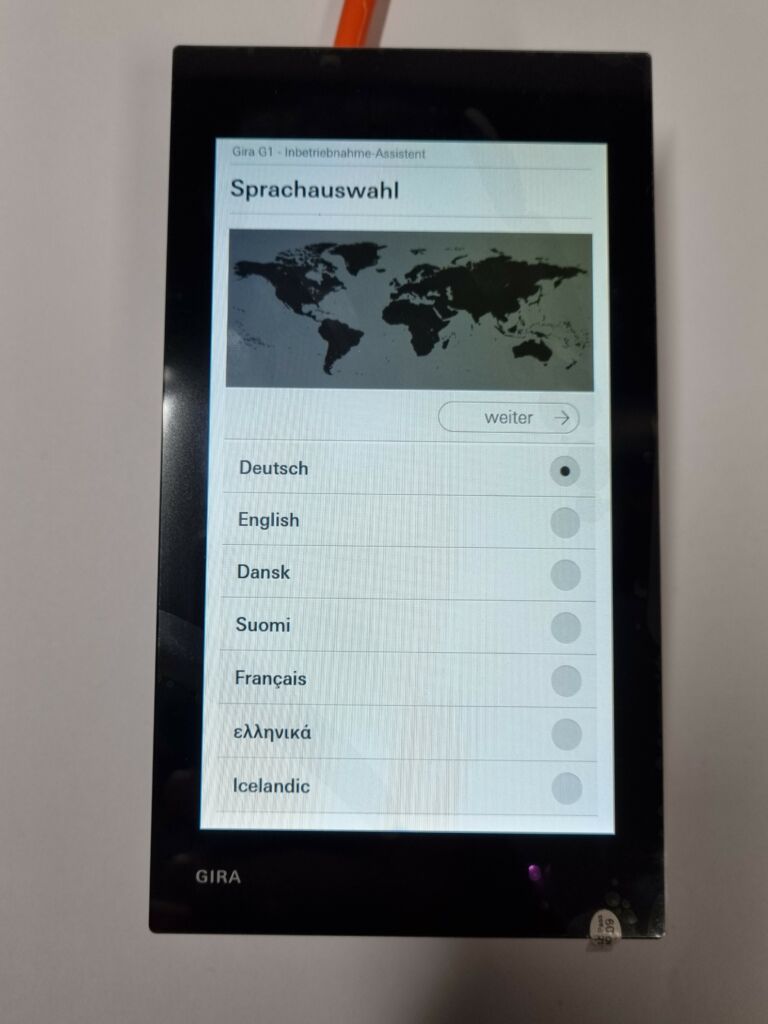
Initial setup of the G1
Select language
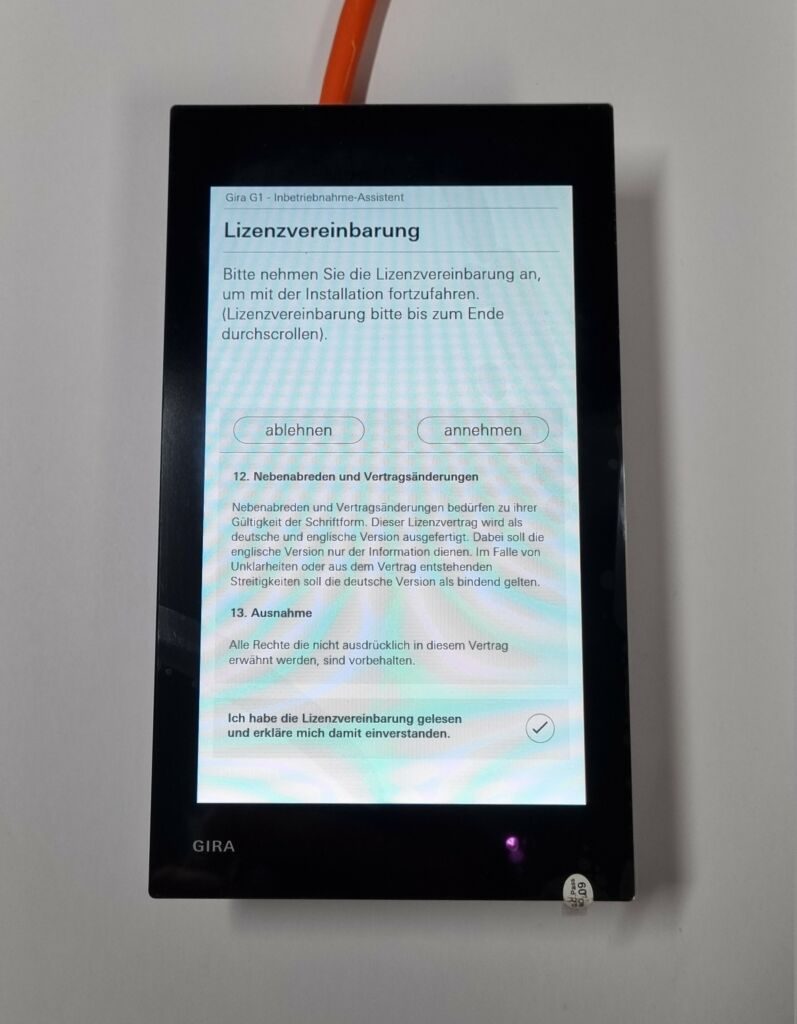
Accept the license agreement
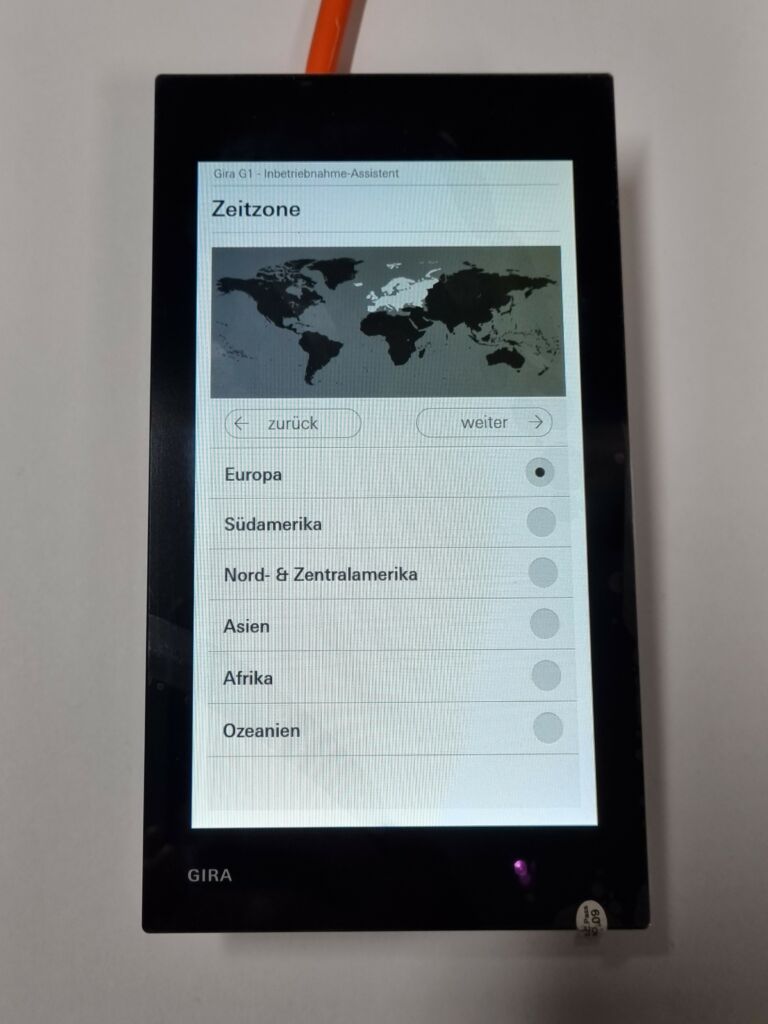
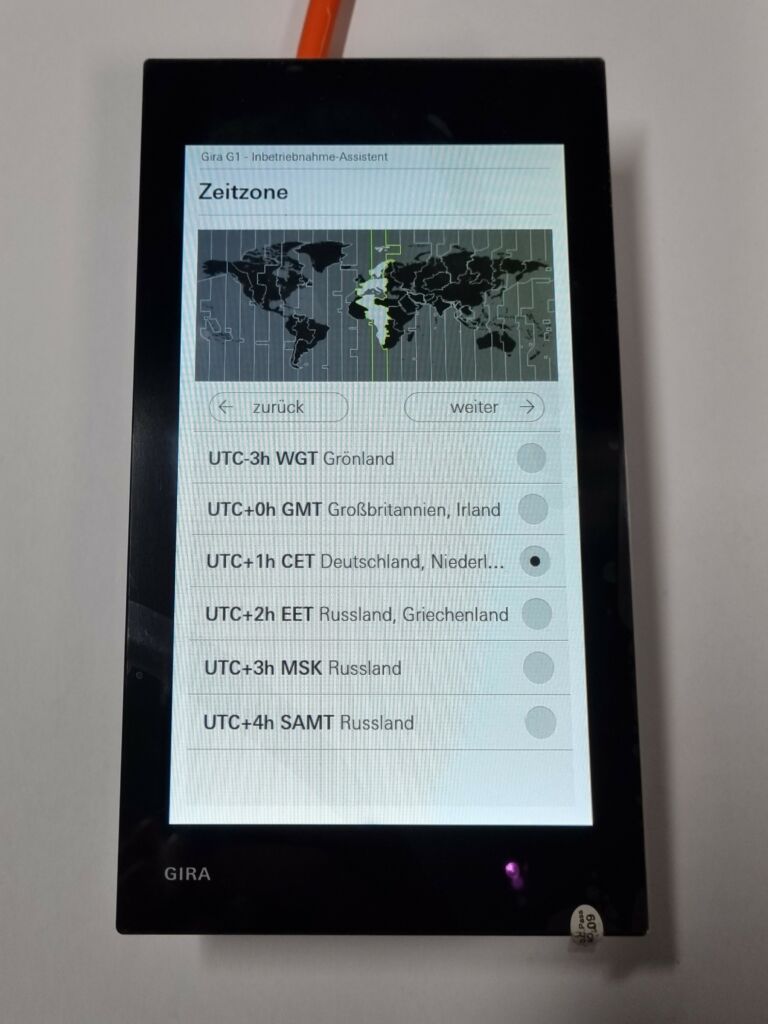
Select time zone
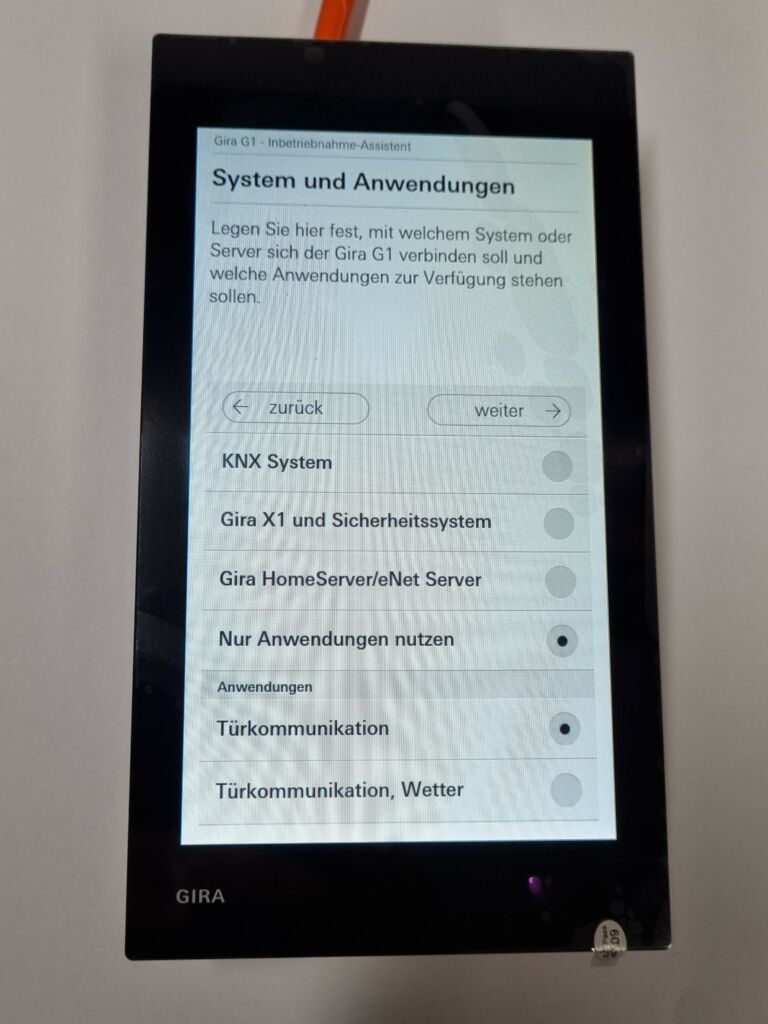
Select Door Communication as the application
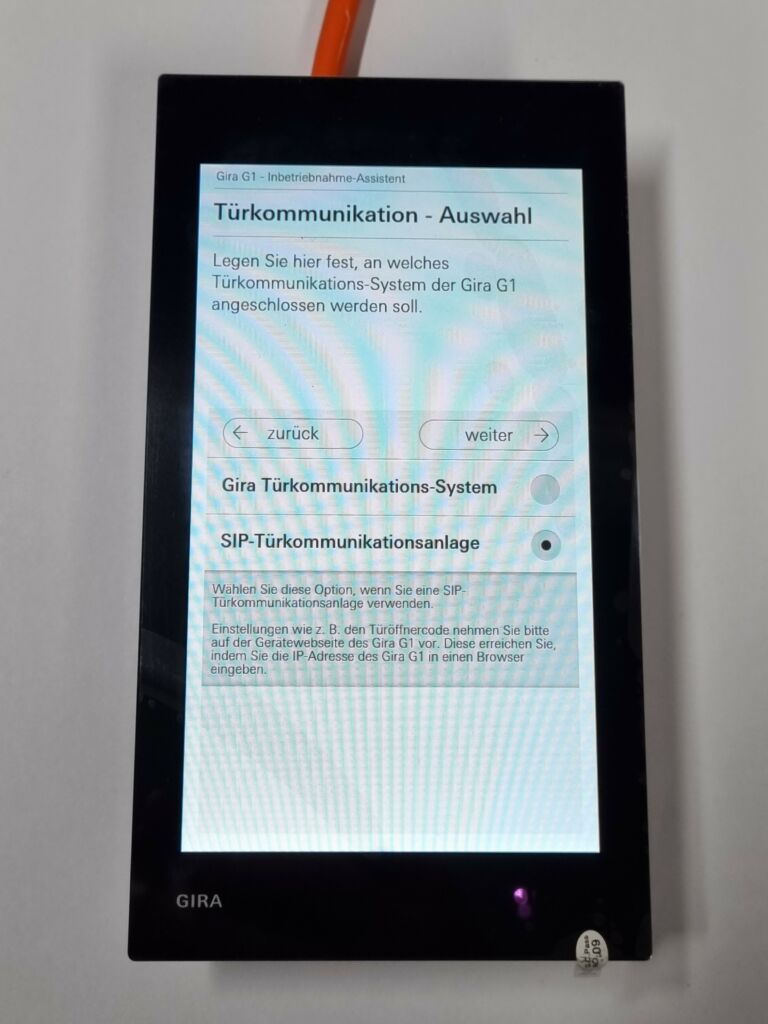
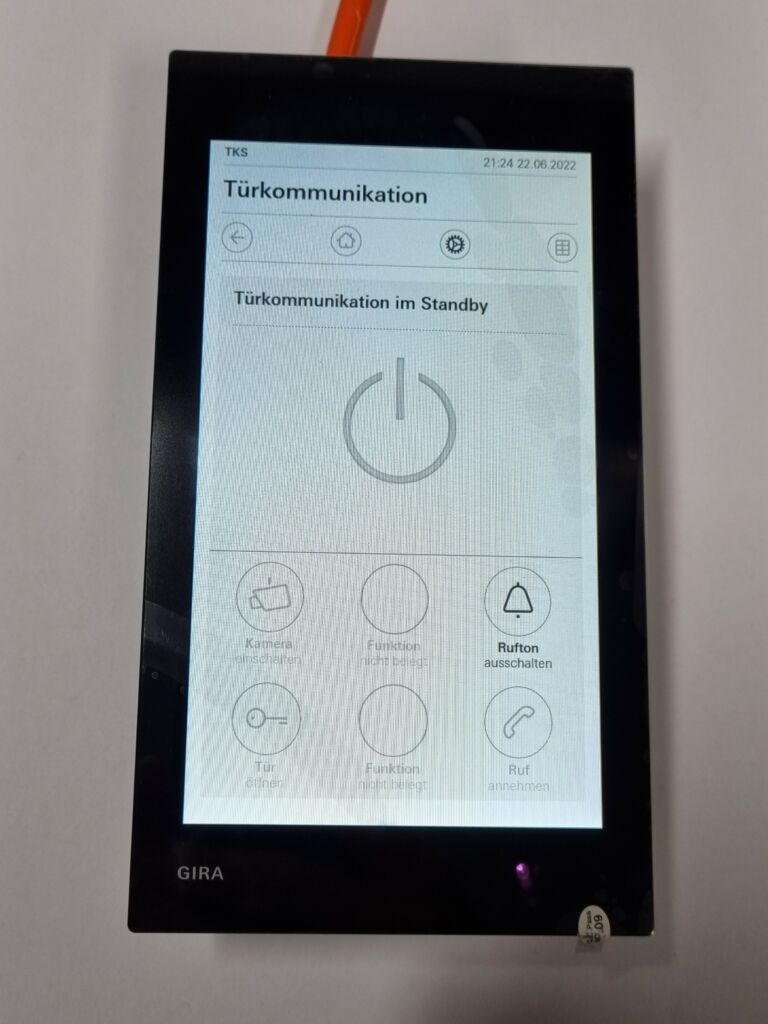
Choose the SIP door communication system
Make compatibility settings on ESENTA Sias
Open the ESENTA Sias web interface and log in.
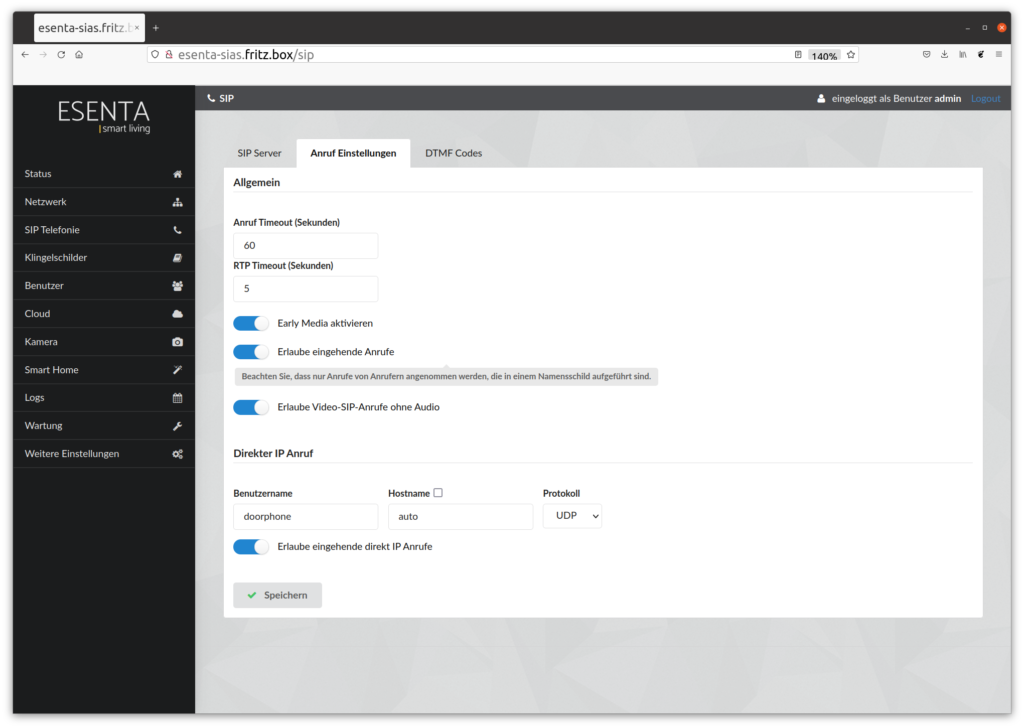
Then go to the SIP Telephony subpage and open the Call Settings tab.
A few settings need to be made there for correct communication with the G1.
Enable Early Media, incoming calls, video SIP calls without audio, and incoming direct IP calls.
The hostname for direct IP calls must also be set to auto (uncheck the checkbox), and the protocol must be set to UDP.
Set up the doorbell button on ESENTA Sias
Now open the Doorbell Nameplates subpage to set the G1 as a call destination.
In this example, we'll set up a direct IP call: this means no additional SIP server is involved in the communication. In principle, the call can also be routed through a SIP server, but some SIP servers filter out the video information. Among others, the SIP server used on FRITZ!Boxes does not support video transmission.
Add the SIP address of the G1 in the form sip:[IP address] to the doorbell nameplate. Replace the placeholder [IP address] with the G1's IP address. You can find the G1's IP address either via your router's web interface, or by opening the settings menu on the G1's touchscreen and selecting System > Configure Network:
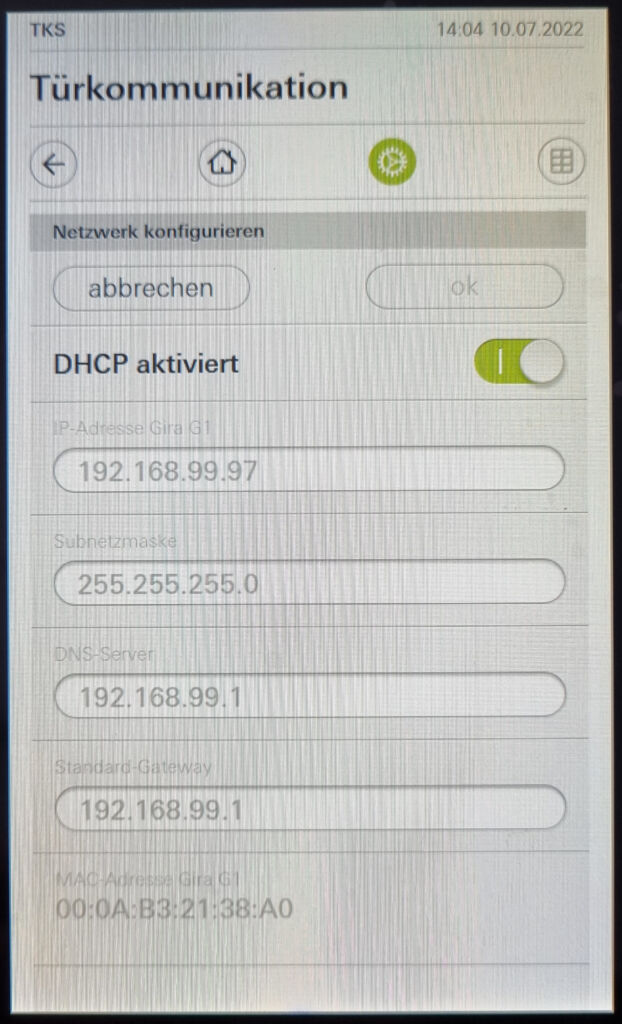
In this example, the SIP address is sip:192.168.99.97
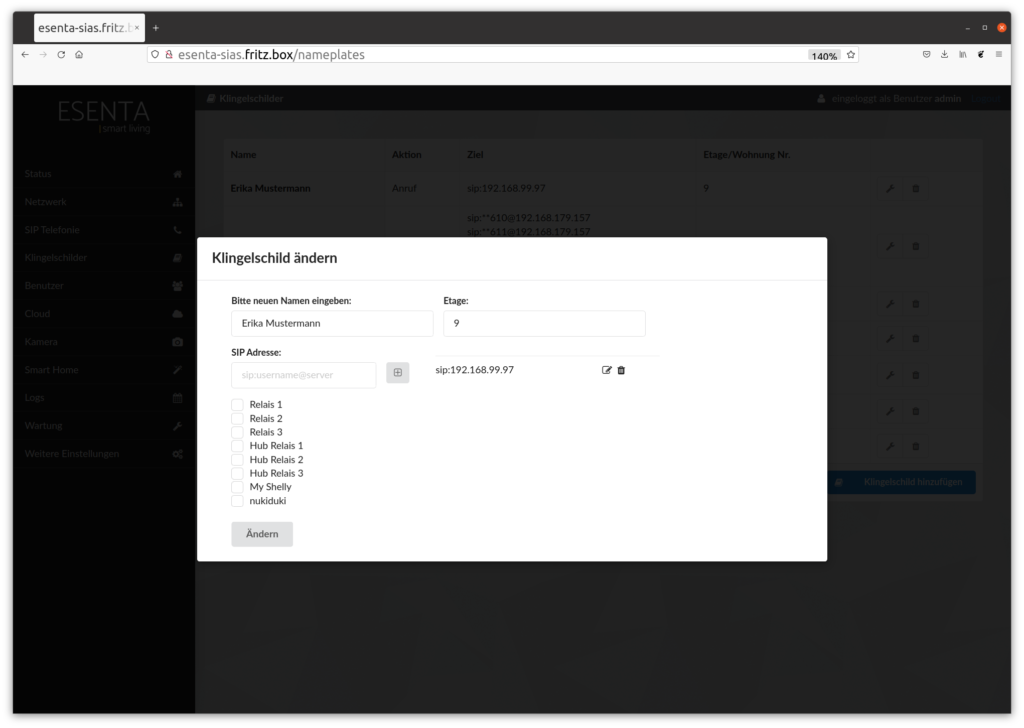
You can then make a test call via ESENTA Sias. The G1 should now ring.
Set up a callback button on the G1
The G1's IP address takes you to its web interface, where further settings can be made.
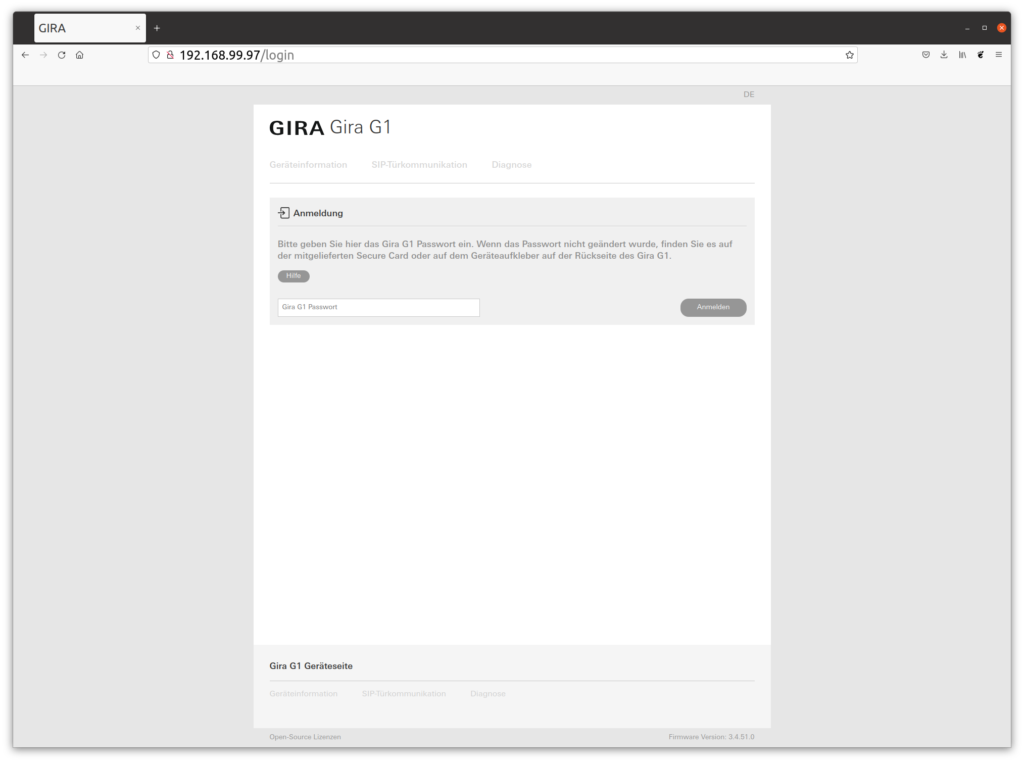
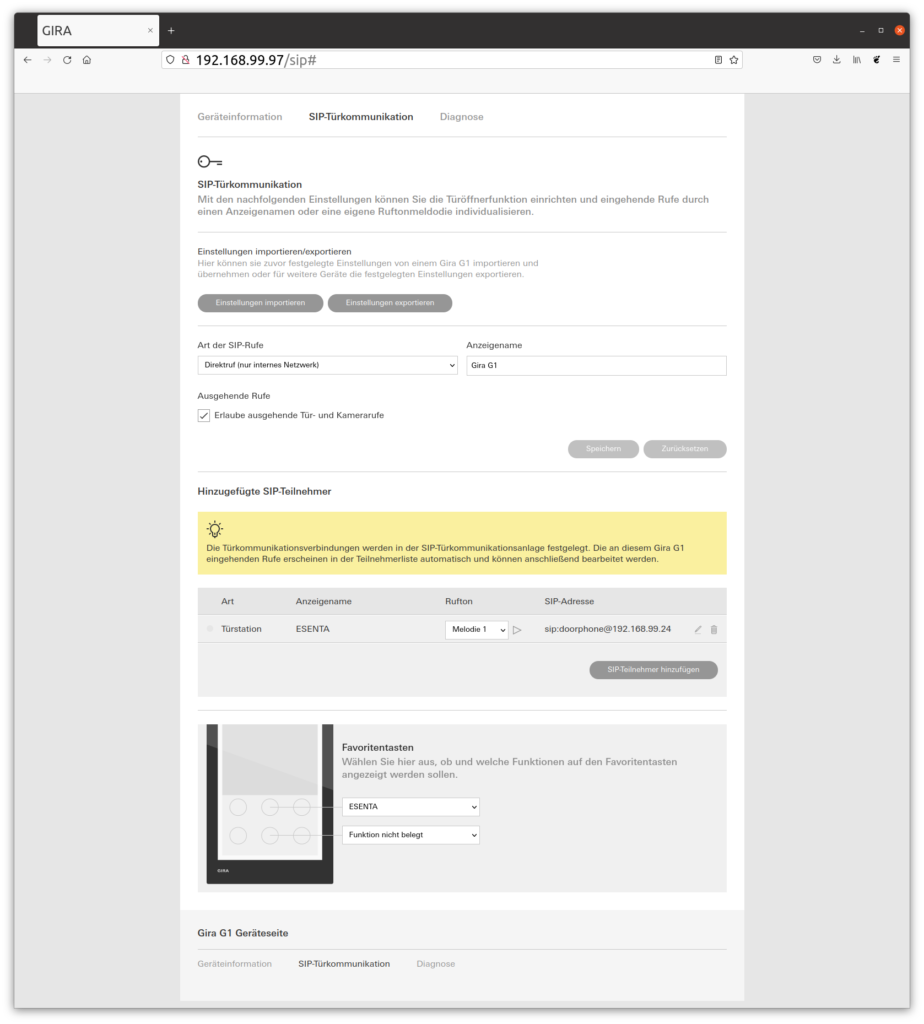
After logging in successfully, select SIP Door Communication.
Make sure Type of SIP calls is set to Direct call (internal network only) and that the Allow outgoing door camera calls checkbox is enabled.
If a call has already been made from ESENTA Sias to the G1, an entry without a name from ESENTA Sias should already be listed among the SIP participants. If no entry exists yet, you can create one by pressing the doorbell button on ESENTA Sias once.
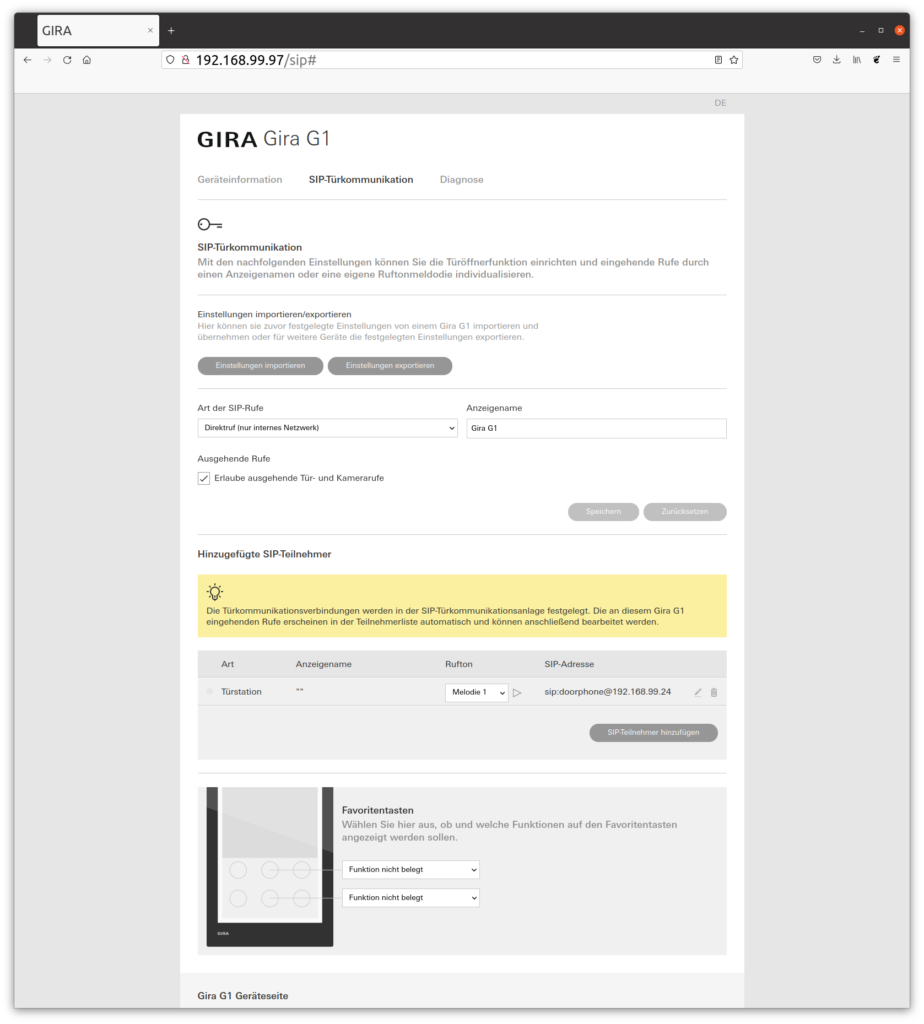
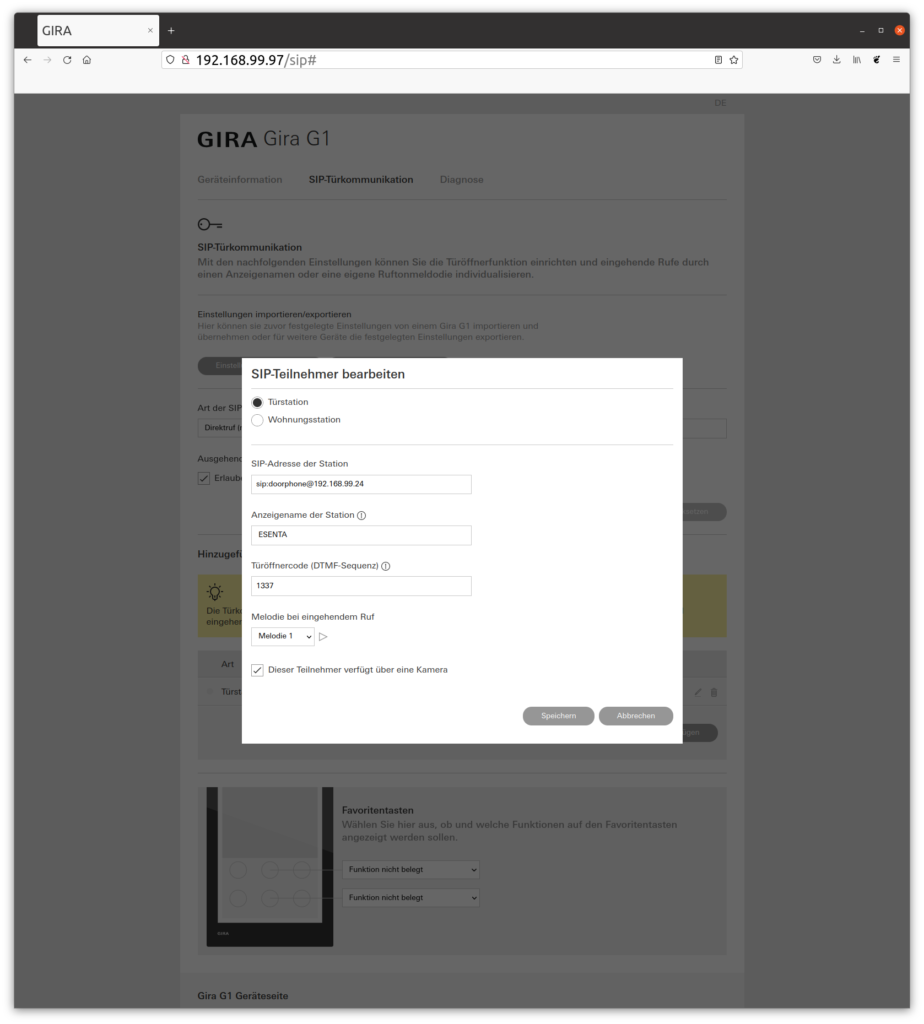
This entry can be edited by clicking the pencil icon.
In the window that opens, you can set a display name for the outdoor station, e.g. ESENTA.
You can also store a door-opening code (DTMF) here. This code must first be set in the ESENTA Sias web interface.
The This participant has a camera checkbox must be enabled.
Finally, you can assign a favorites button to ESENTA. This makes it possible to call back the outdoor station at the press of a button: