Creating an NFON SIP account
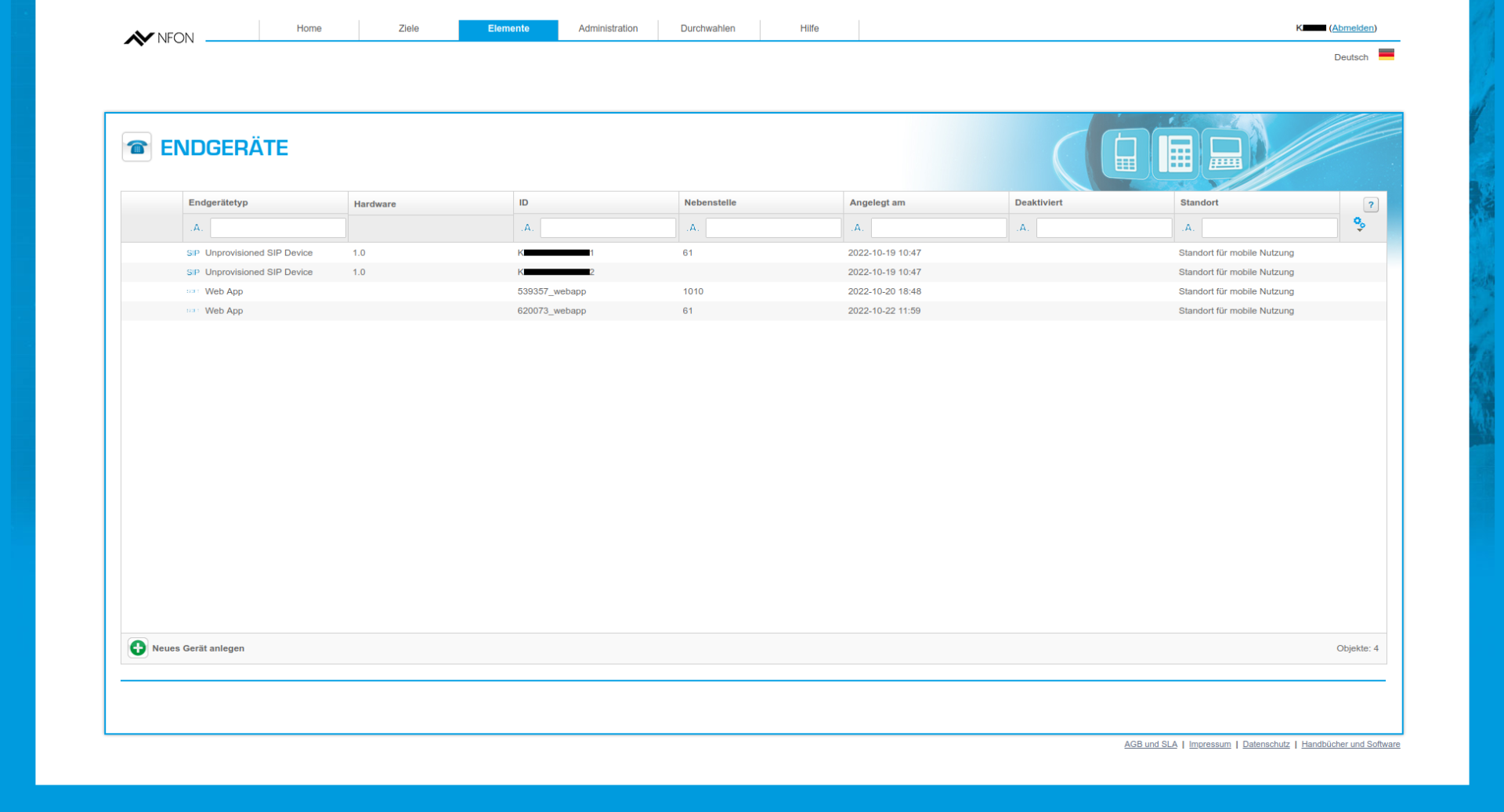
Request an account for an "Unprovisioned SIP Device" from NFON to use it with ESENTA SIAS.
It should then be listed in the NFON web interface under Elements > Devices.
In the NFON web interface, set up an extension/direct-dial number for the door station under Destinations.
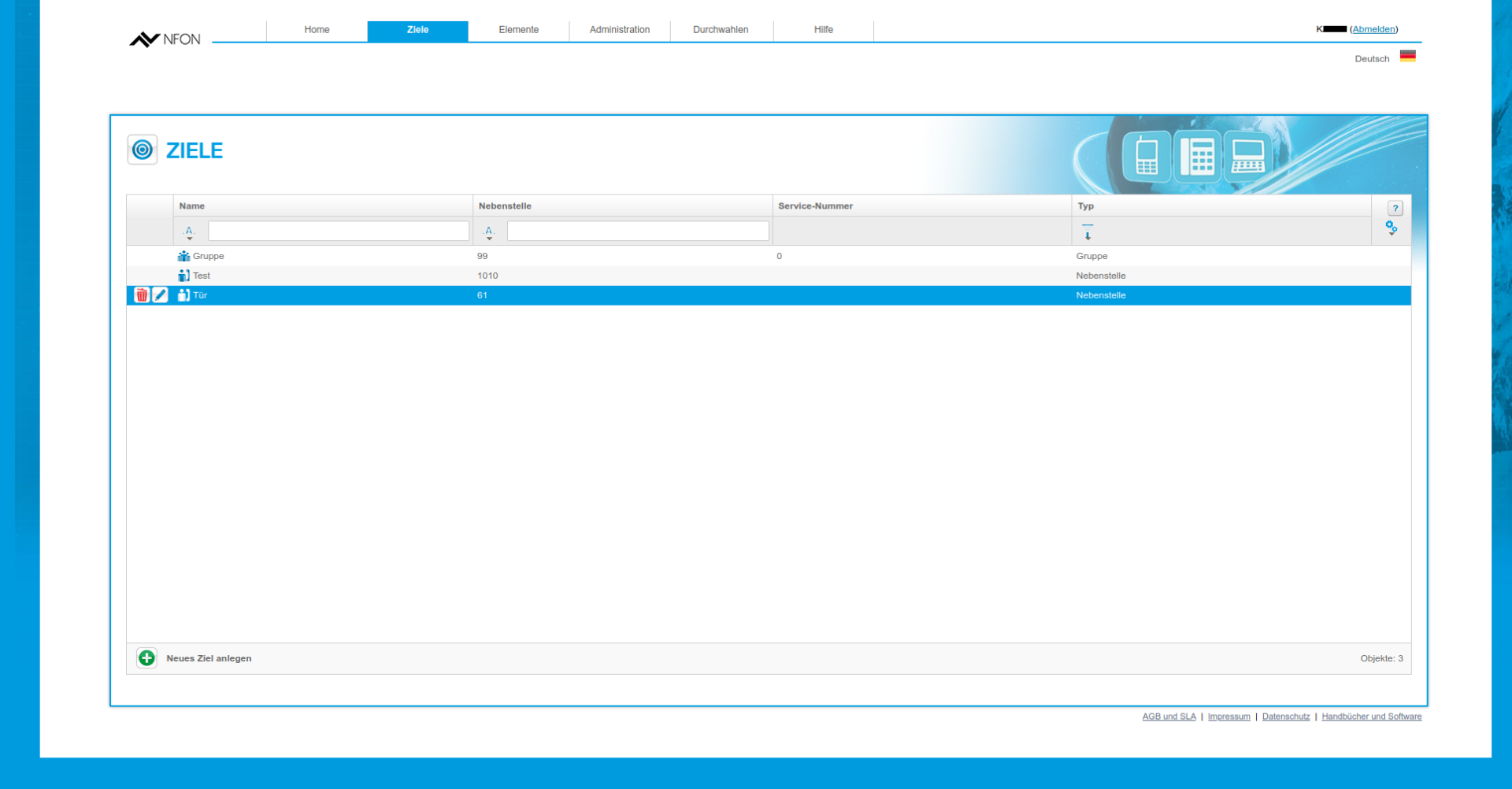
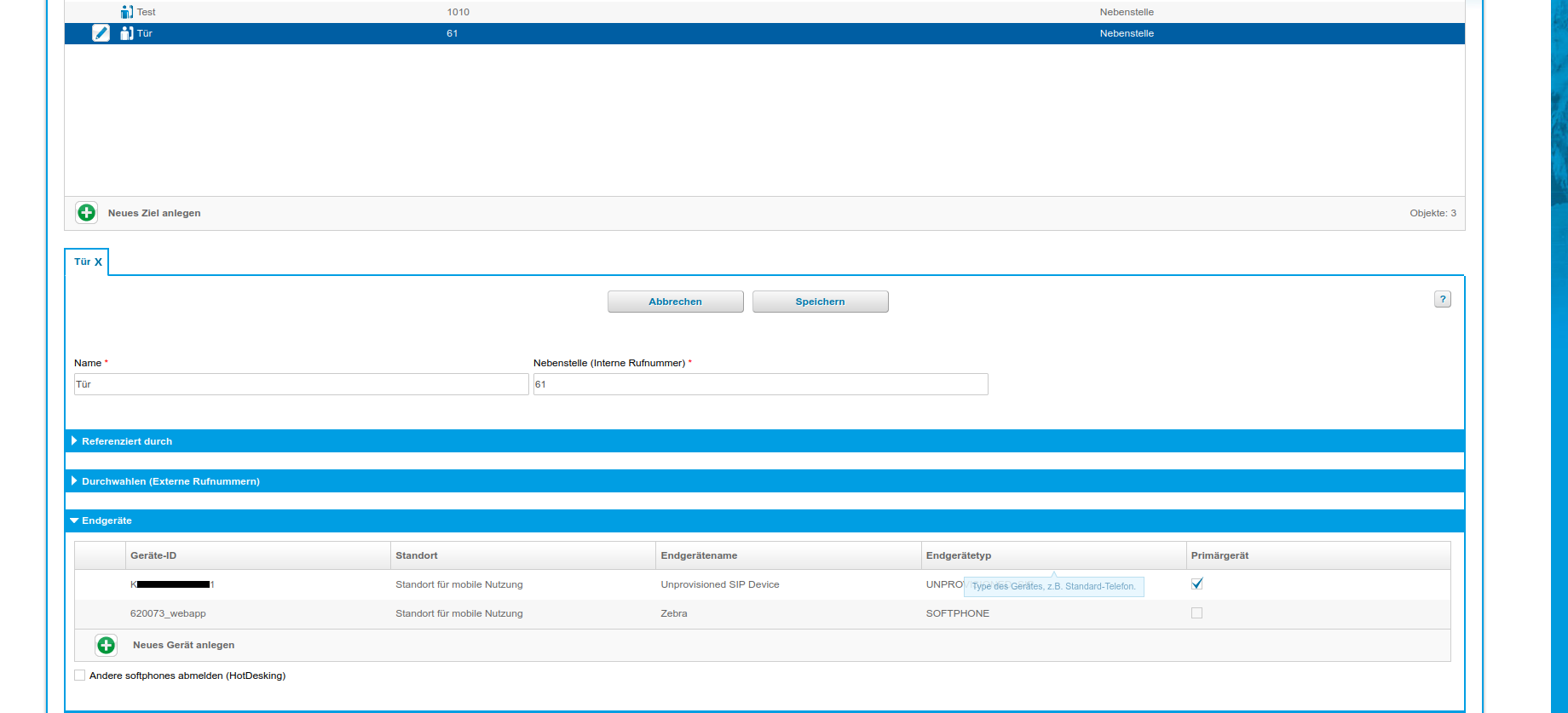
An entry can be edited via the pencil icon. Under the Devices subsection, the device (SIP account) for ESENTA SIAS should be listed.
Storing the SIP account in ESENTA SIAS
Open the ESENTA SIAS web interface.
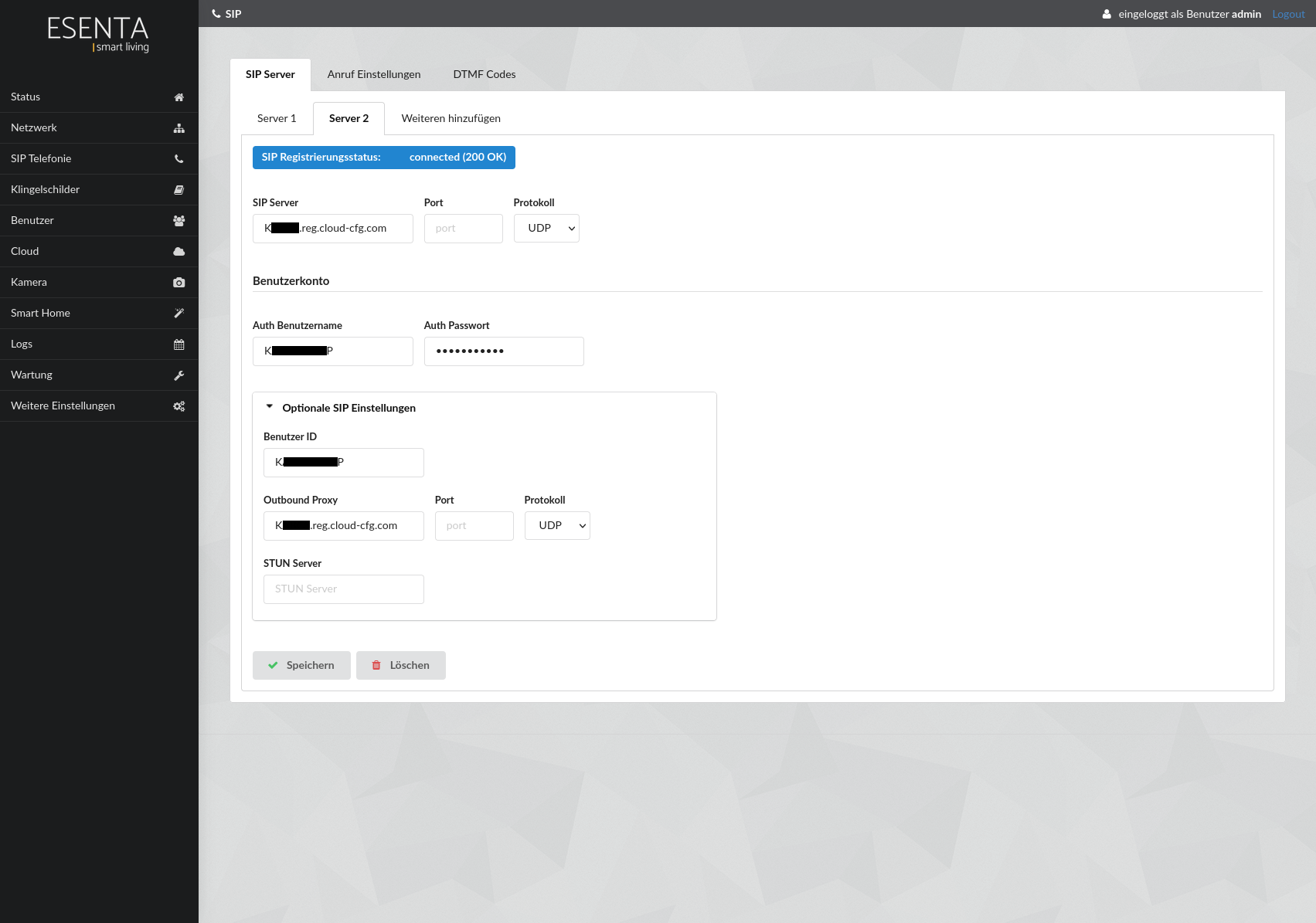
Set up the SIP account on the "SIP Telephony" page.
- Under "SIP Server", enter the SIP registrar provided by NFON (K****.reg.cloud-cfg.com)
- Select "UDP" as the protocol
- Enter the SIP LOGIN from NFON under "Auth Username"
- Enter the SIP PASSWORD from NFON under "Auth Password"
- Open "Optional SIP Settings"
- Under "User ID", enter the SIP LOGIN from NFON again
- Under "Outbound Proxy", enter the SIP registrar again
- Also select "UDP" as the protocol
- Then save and wait a moment. After reloading the page, the "SIP Registration Status" should change to "connected".
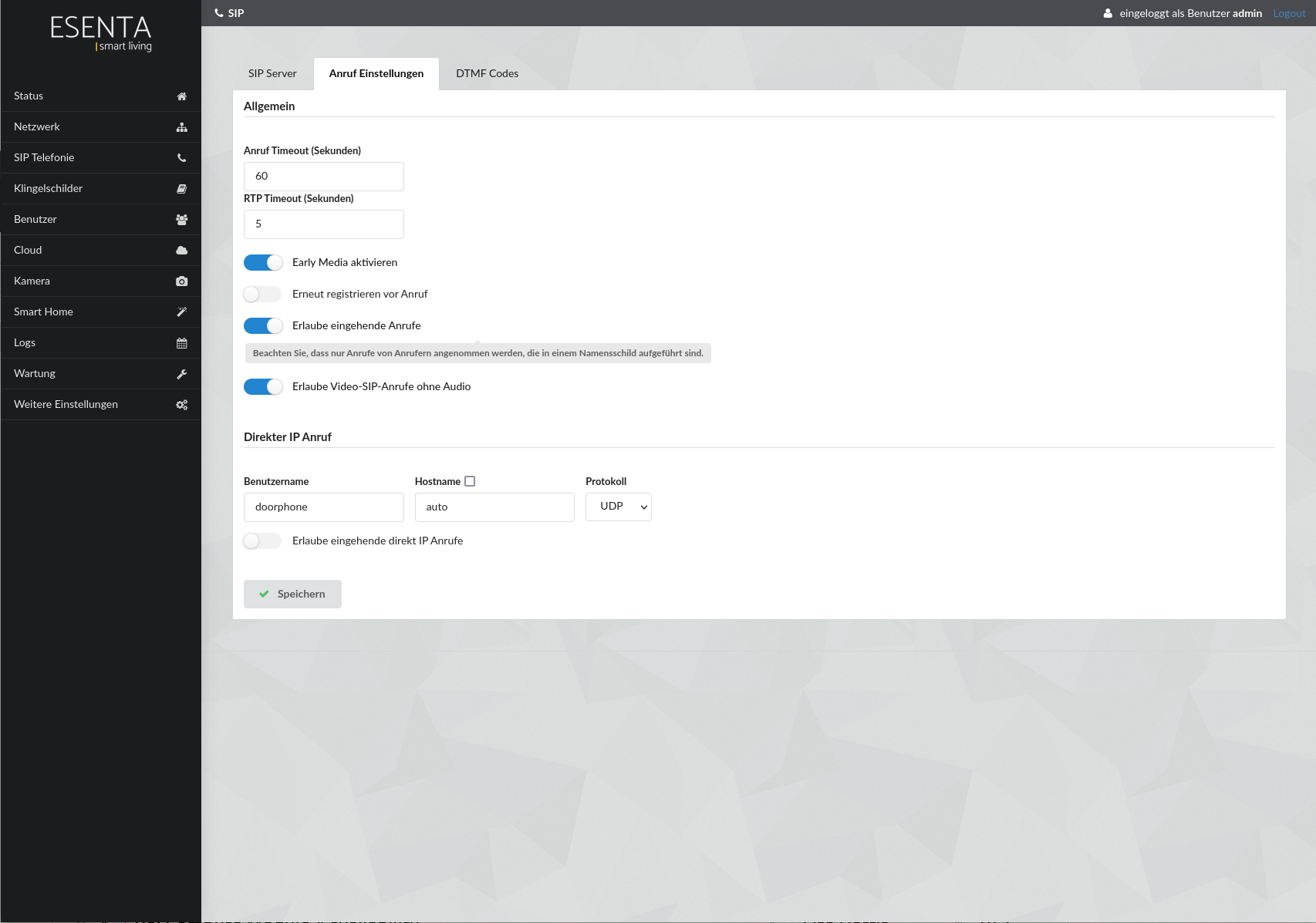
On the SIP > Call Settings page, please disable the setting "Re-register before call". Otherwise, problems can occur when establishing calls.
Storing a call target in ESENTA SIAS
Under Doorbell Buttons, enter "sip:[EXTENSION]@K***.reg.cloud-cfg.com" as the SIP address. Replace the placeholder [EXTENSION] with the extension number of the destination you want to call (here, for example, 1010).
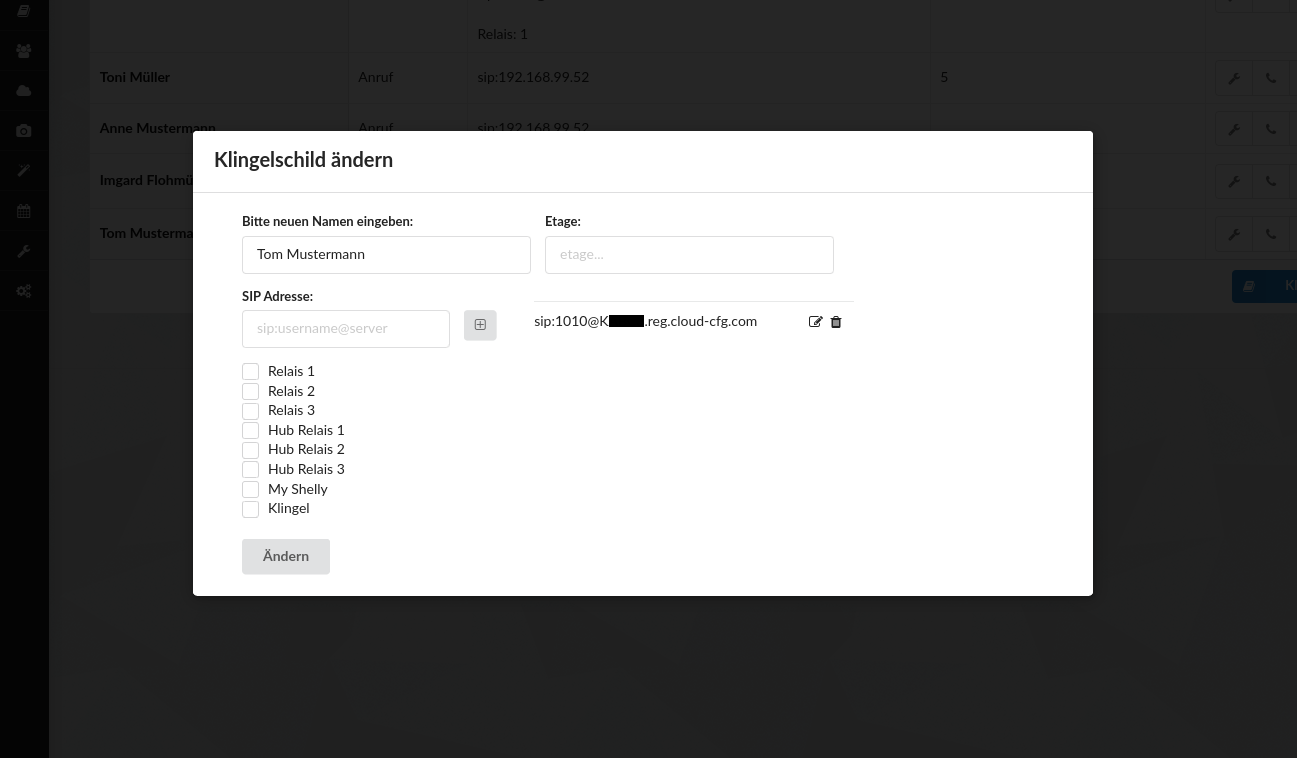
After pressing the doorbell button, the device or Cloudya account linked to that extension should then ring.
Please note that transmitting ESENTA SIAS's video image via NFON/Cloudya is currently unfortunately not possible.


