Creating a User Account in the Gigaset Web Interface
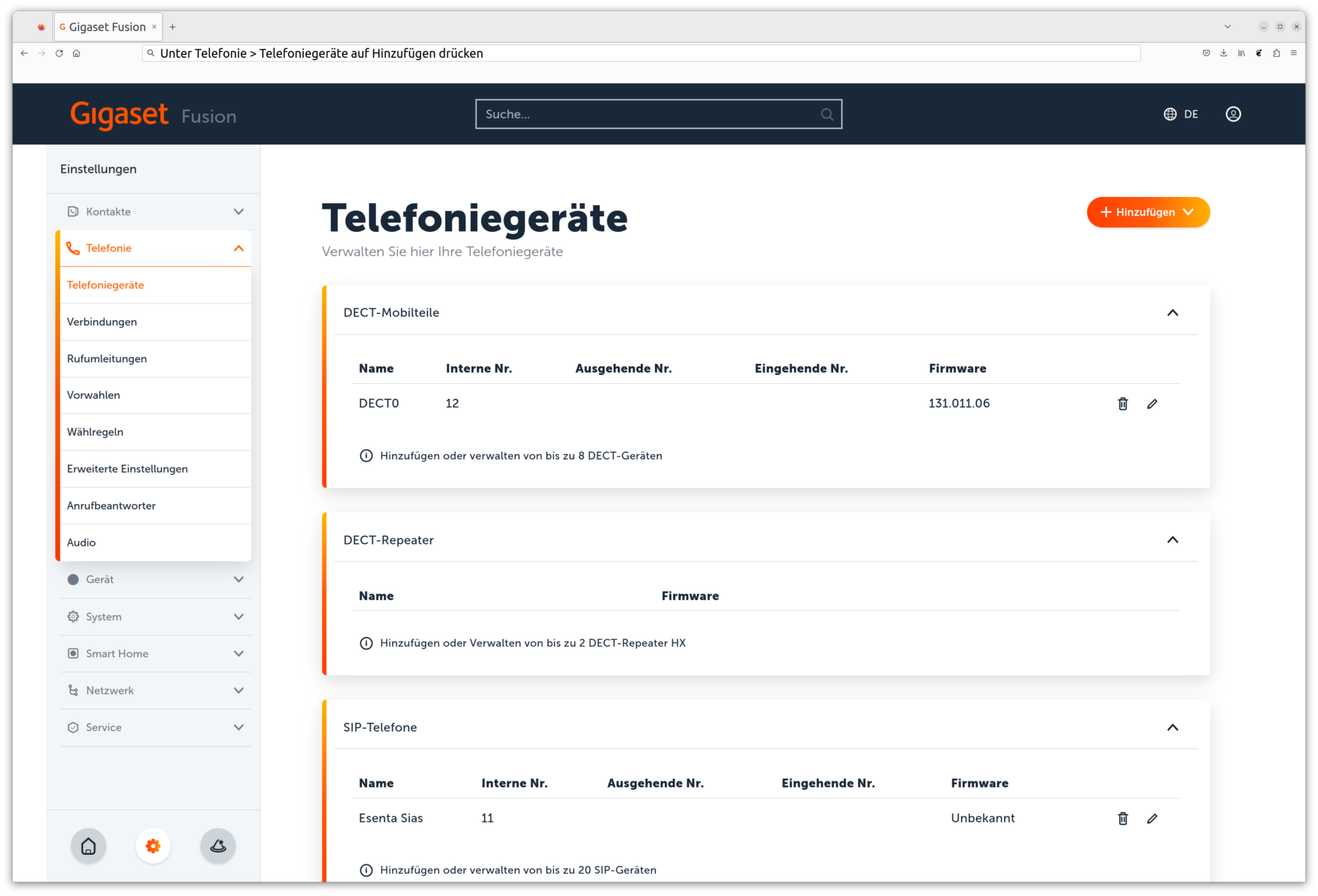
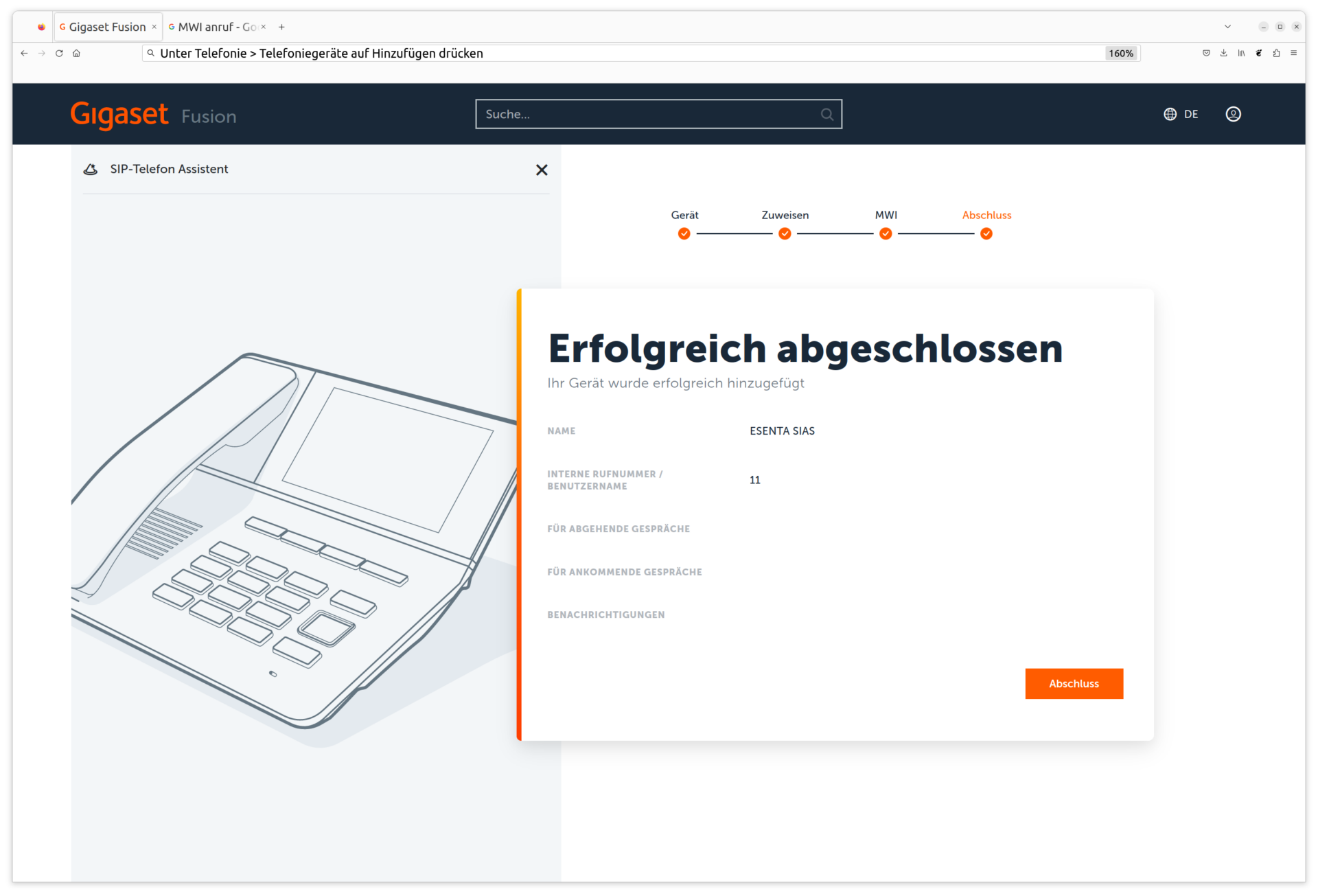
Under Telephony > Telephony Devices, click Add and select SIP Phone.
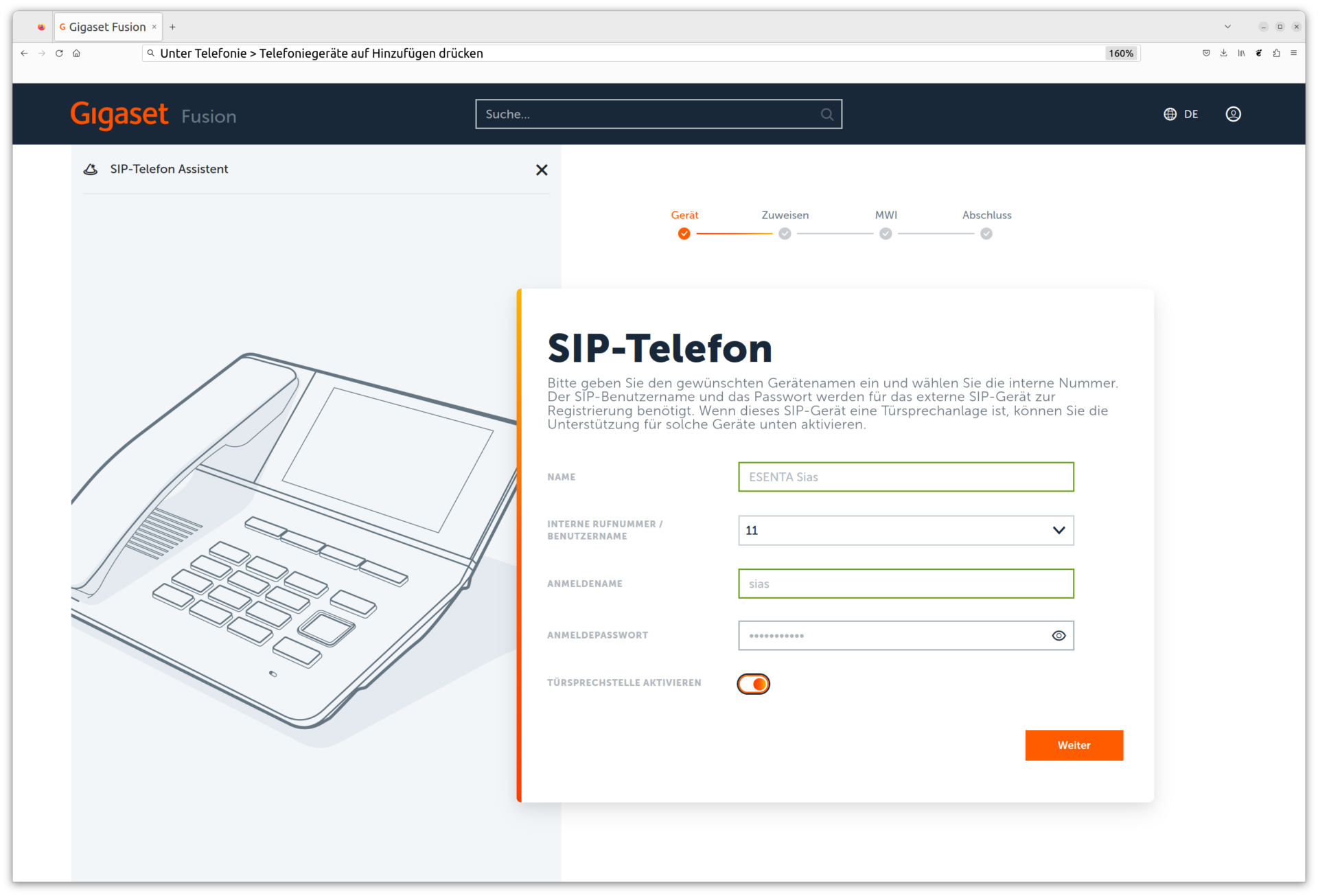
Set a Name, a Login Name, and a Login Password, and check Door Station.
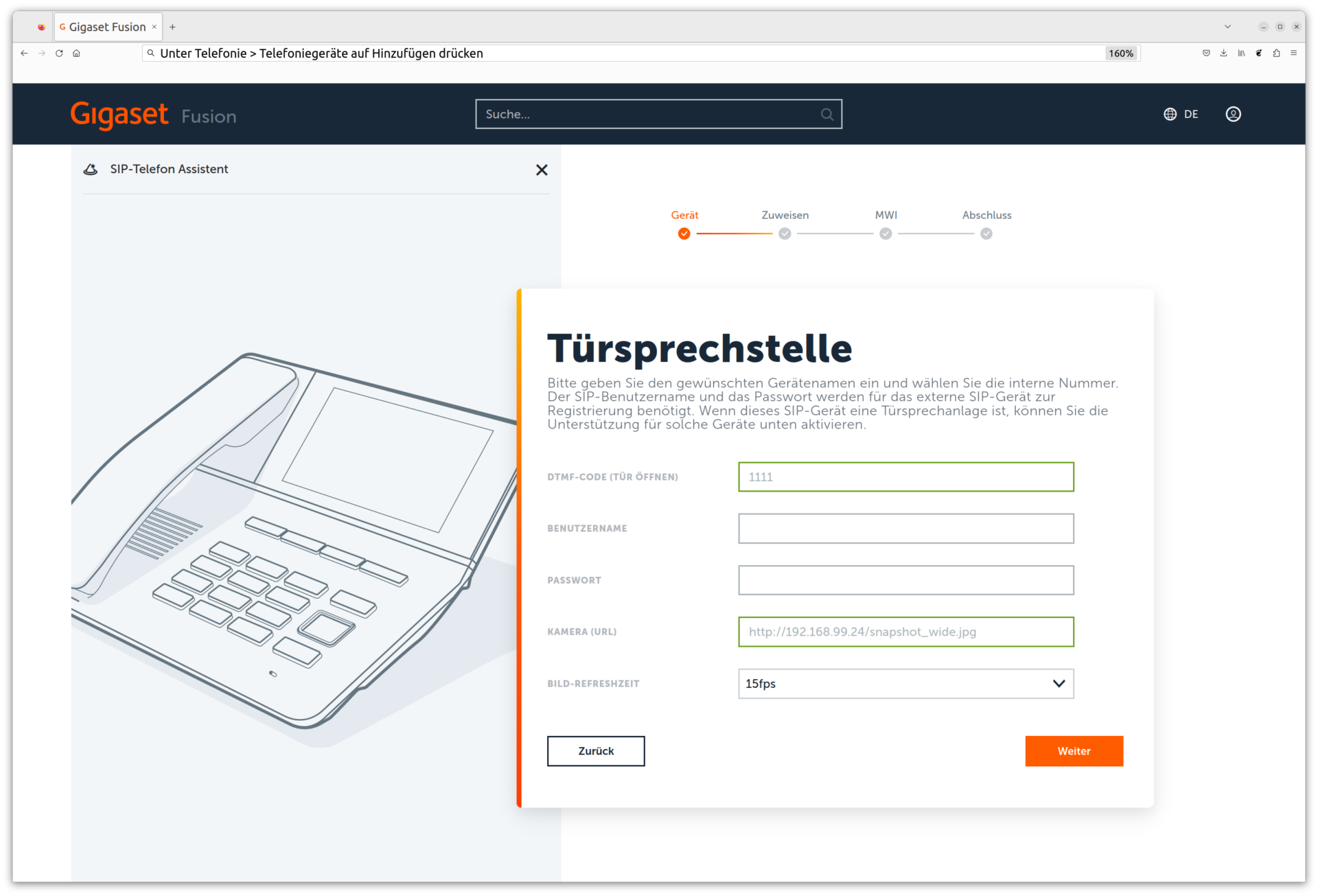
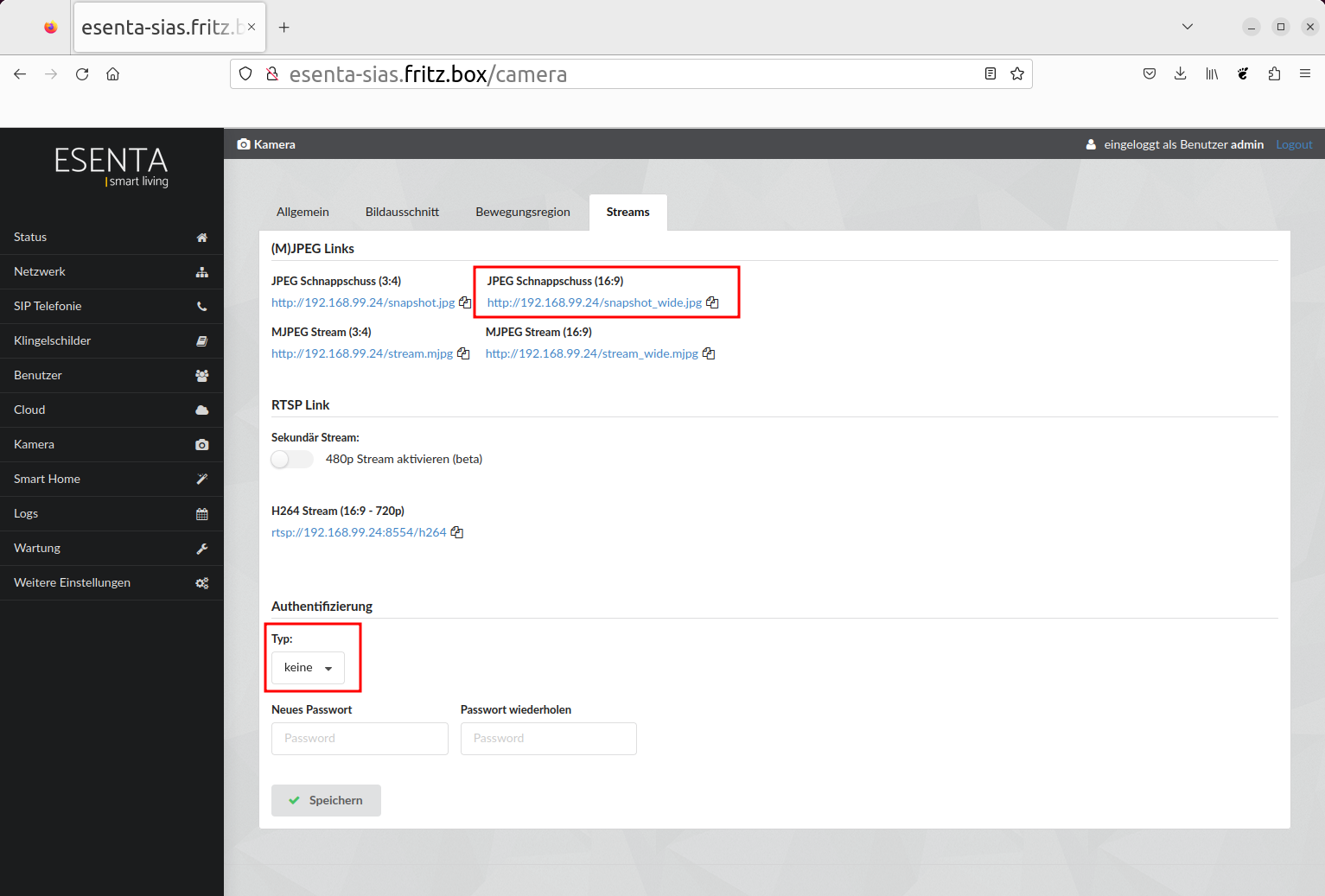
Set a door opening code (e.g. 1111 here) and enter the "JPEG Snapshot (16:9)" URL from the Sias web interface under Camera URL (under Camera > Streams, first set the Authentication Type there to "none"). Set the image refresh rate to 15fps.
Then, if needed, assign a number and complete the configuration.
Entering the Configuration in ESENTA Sias
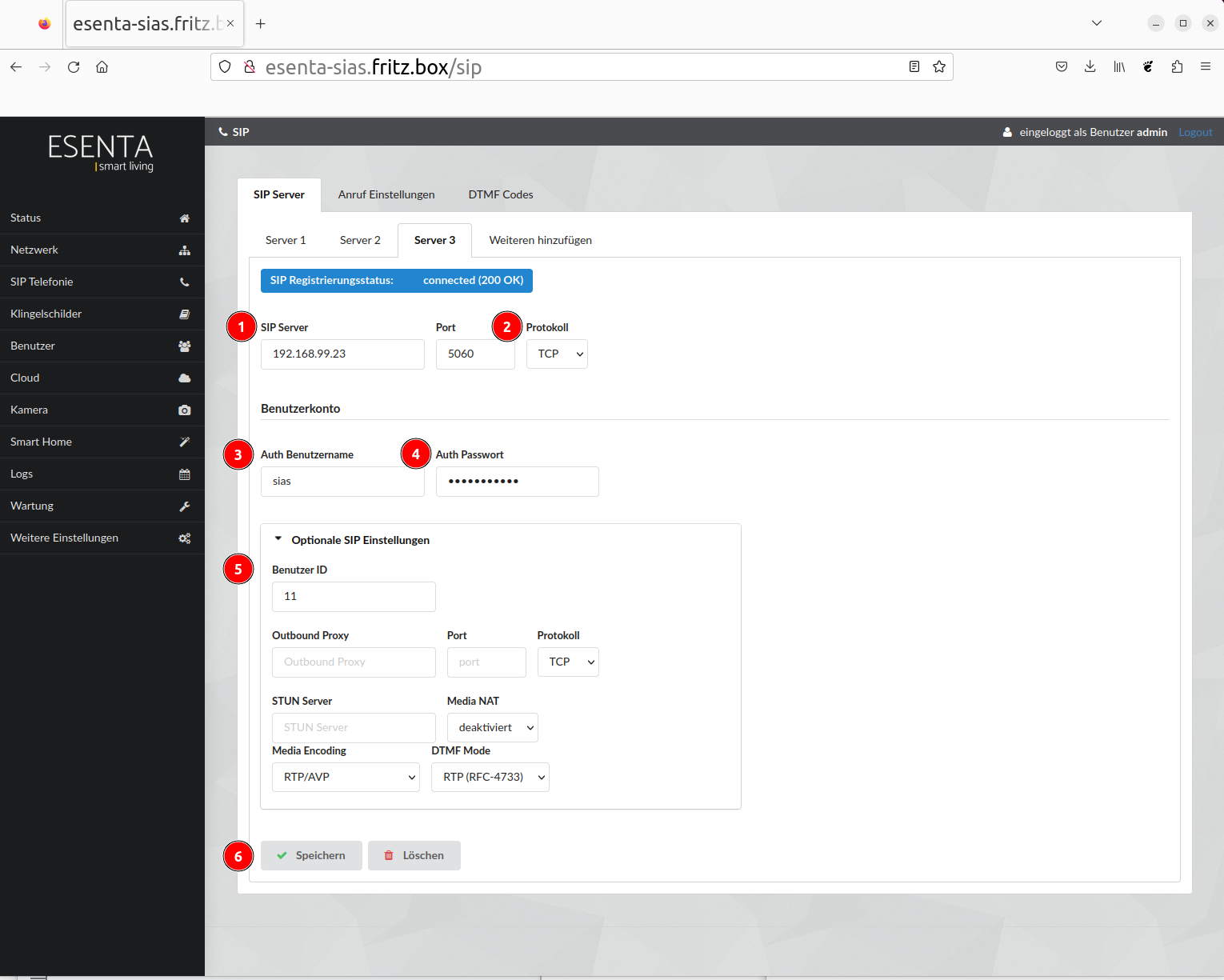
Open SIP Telephony > SIP Server in the Sias web interface.
- In the SIP Server field, enter the FX800W's IP address
- Select TCP as the protocol
- Under Auth Username, enter the login name from the previous step
- Under Auth Password, enter the login password
- Under User ID, enter the internal call number of ESENTA Sias as shown in the FX800W web interface
- Save
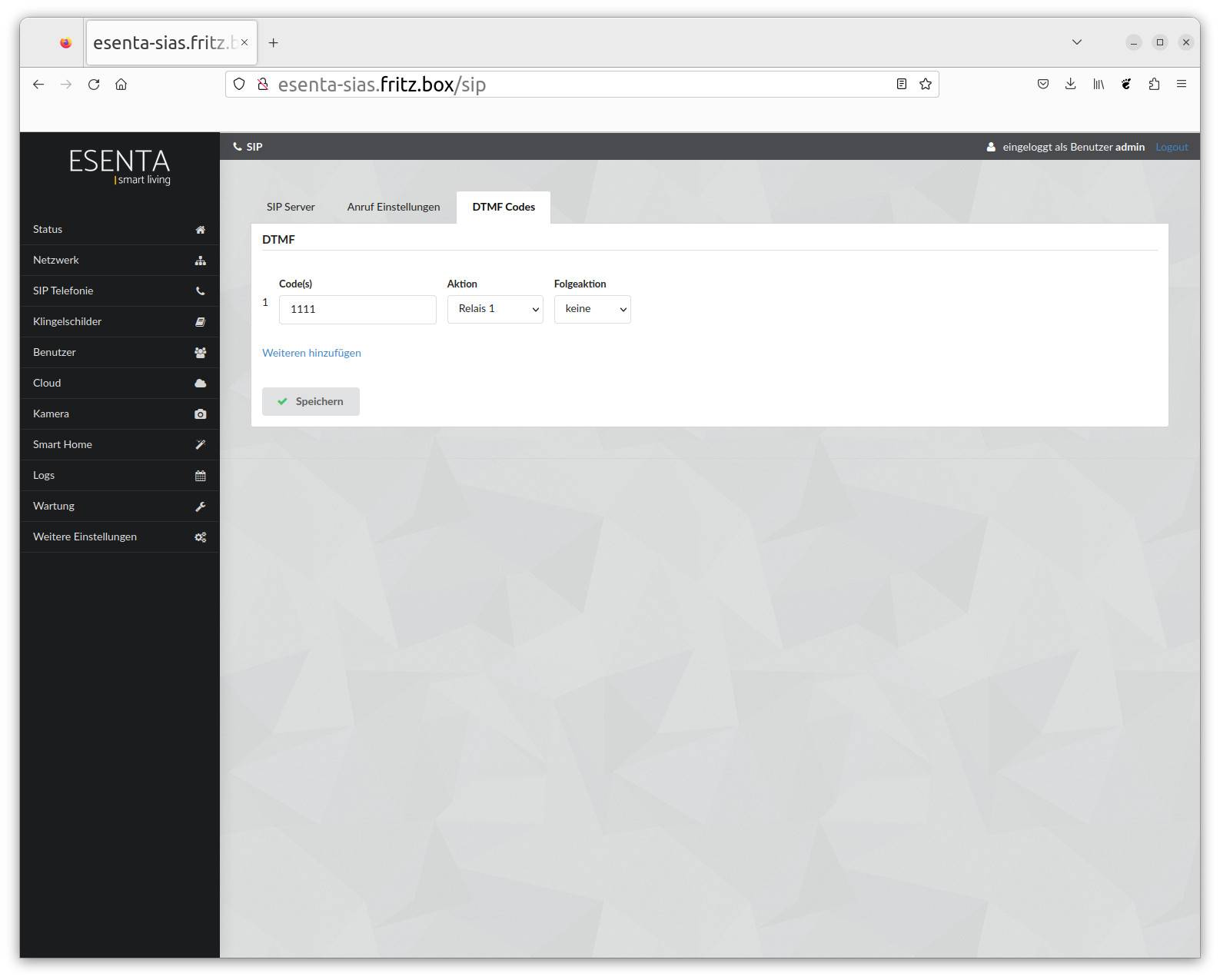
Now set up the DTMF code under SIP Telephony > DTMF Codes.
Setting Up the Call Destination in ESENTA Sias
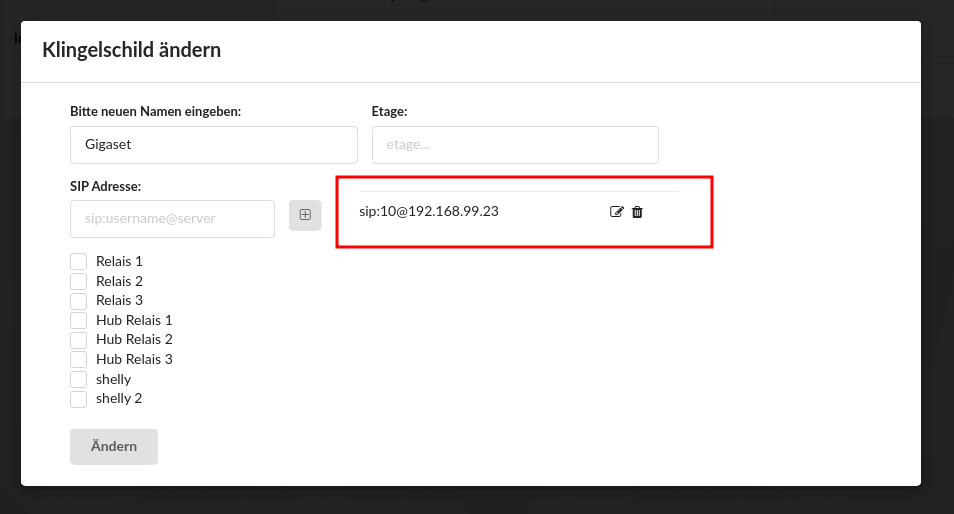
The FX800W can then be set up as a call destination in a doorbell nameplate in ESENTA Sias.
To do this, open Doorbell Nameplates > Add Doorbell Nameplate and enter the SIP address of the call destination in the form sip:[internal number]@[IP of FX800W], e.g. sip:11@192.168.99.23
Then test by triggering a call.
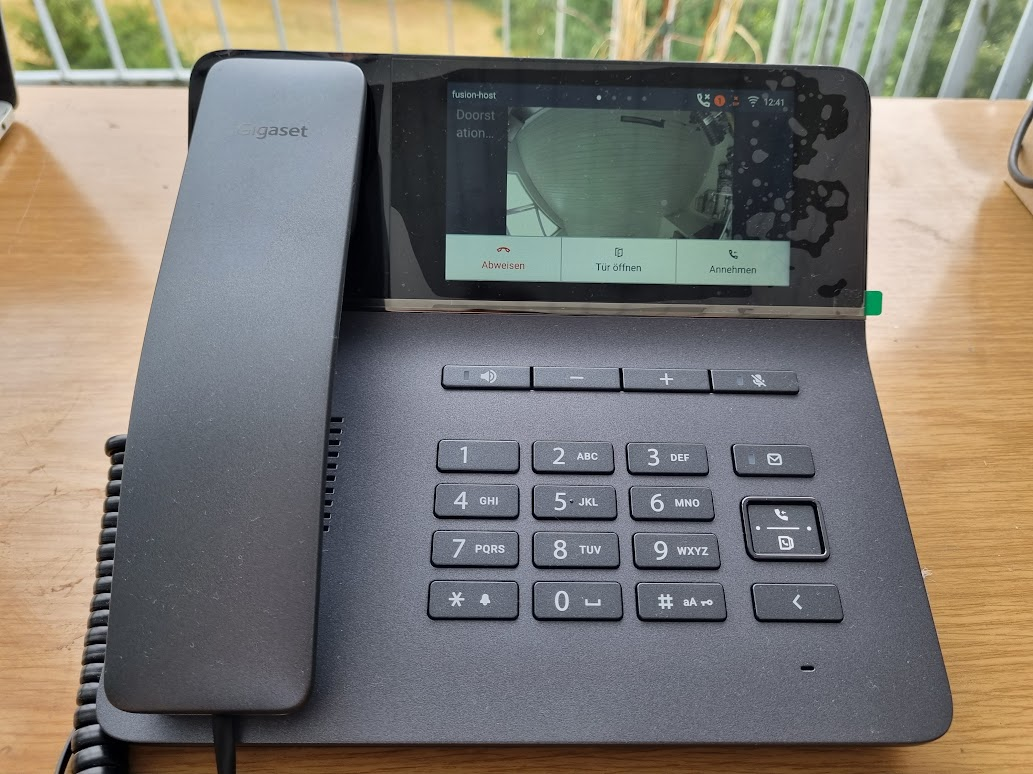
Current limitations: The door-open button on the FX800W only works after the call has been answered.


