To call a Microsoft Teams user with ESENTA Sias, a third-party solution that provides a SIP connection to Teams is required.
The following guide shows how to use the CyberGate product from CyberTwice.
Setting Up CyberGate
A Microsoft Office 365 subscription with Teams is required. Please note that monthly fees apply for using this product (the first trial month is free).
The CyberTwice CyberGate SaaS app can be obtained via Microsoft AppSource or the Microsoft Azure Marketplace. Follow CyberTwice's instructions: CyberGate_How-To_1.4.2.pdf
Once the SaaS resource subscription is complete, the CyberGate management interface can be accessed at the following address:
https://admin.cybergate.cybertwice.com/
There, under Basic > Network, enter the WAN IP through which ESENTA Sias communicates with the internet.
Then a device for ESENTA Sias can be created under Basic > Devices.
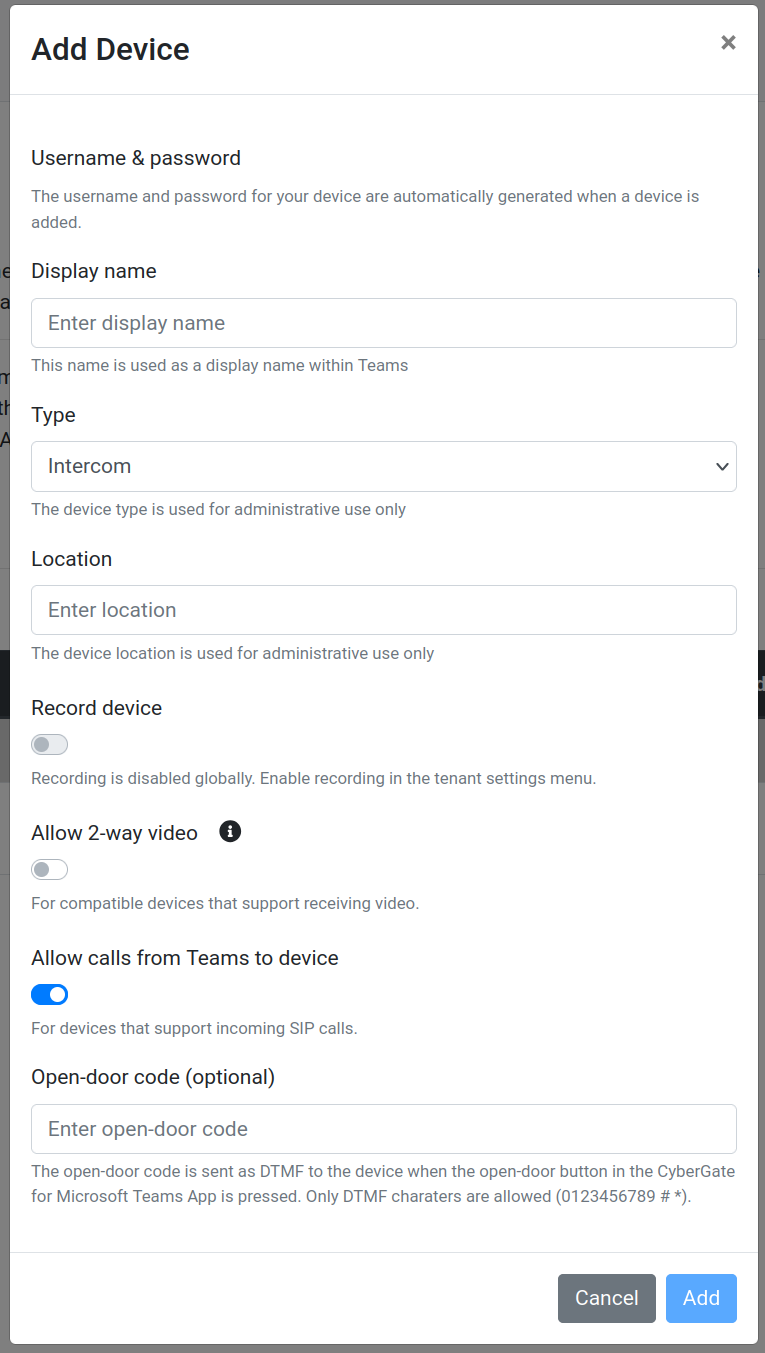
Display Name and Location can be chosen freely. The type must be set to Intercom.
Under Open-door code, you can enter a DTMF code configured in ESENTA Sias to open the door.
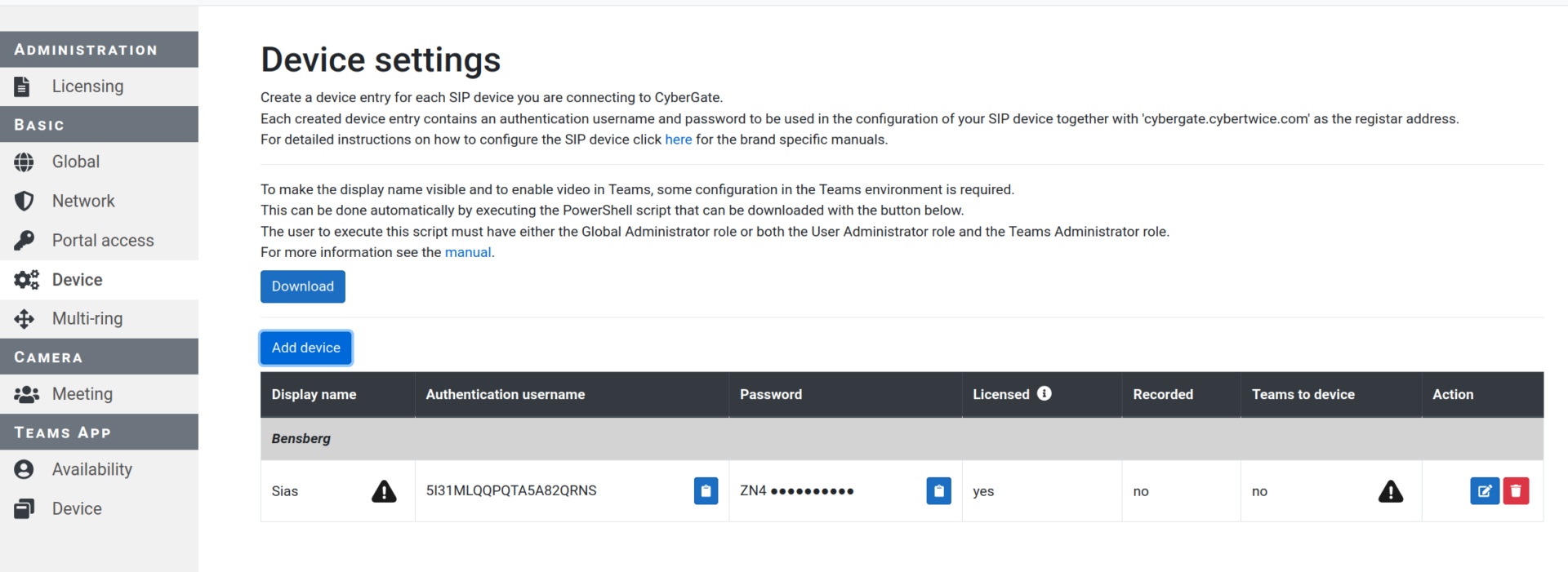
After adding the device, copy the Authentication username and Password to enter them in the ESENTA web interface in the next step.
Setup in ESENTA Sias
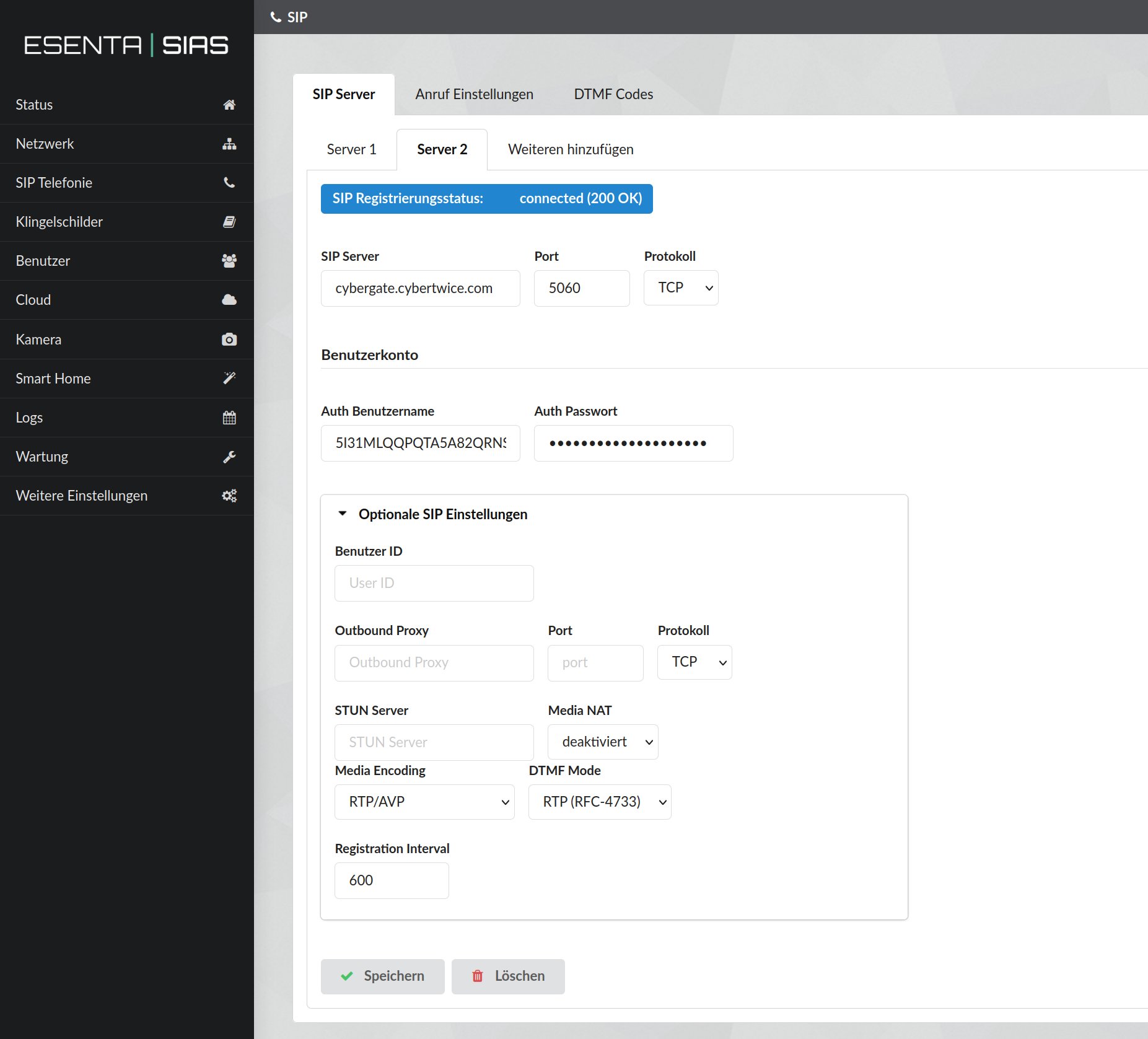
In the ESENTA web interface, open the SIP Telephony menu item (add another SIP server via Add another if needed).
There, enter cybergate.cybertwice.com as the SIP server, and enter the username and password from CyberGate (from the previous step) under Auth Username and Auth Password.
If encryption is desired, the protocol can be changed from TCP to TLS and port 5061 entered.
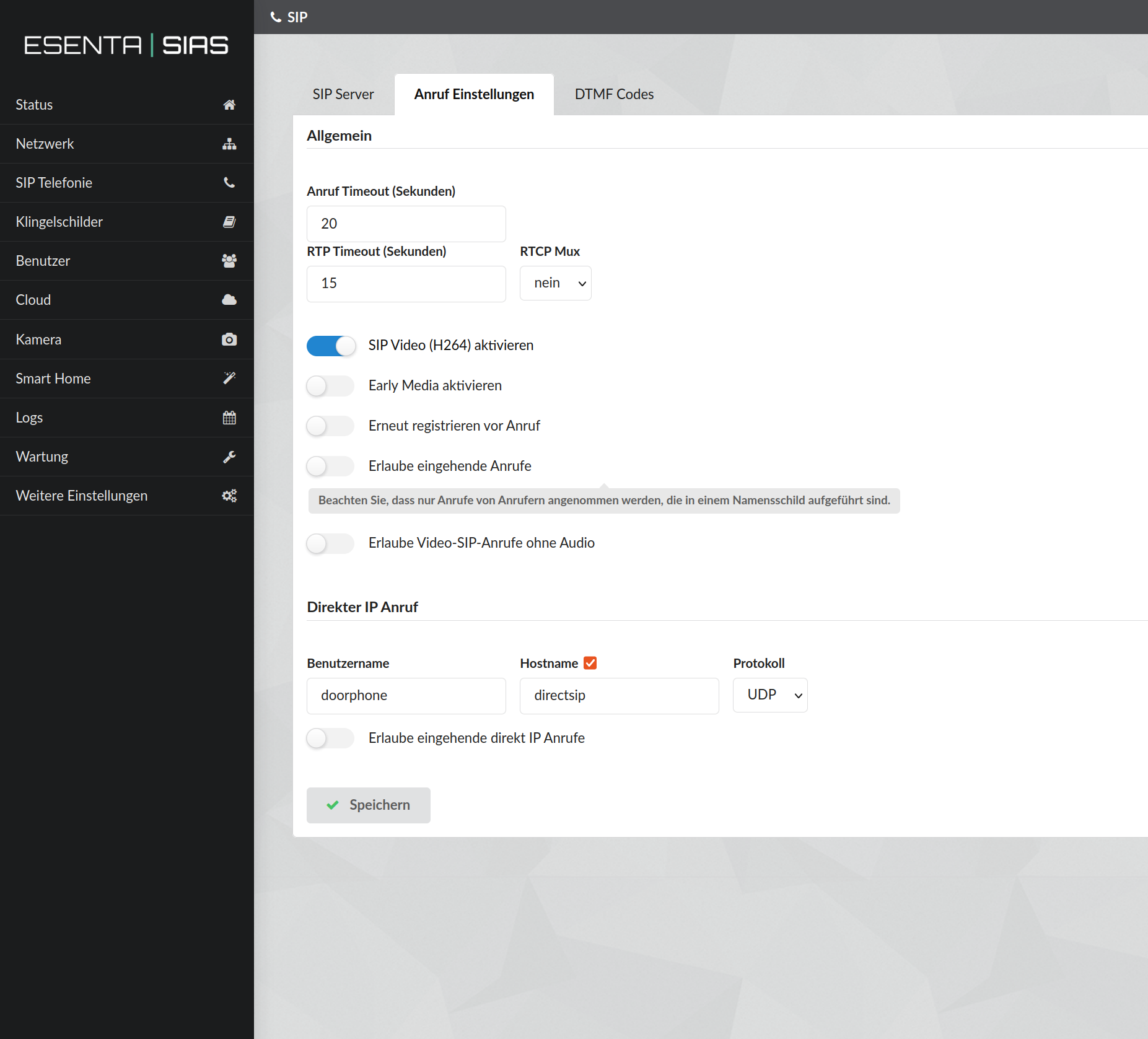
Under Call Settings, enable the SIP Video (H264) option and disable Early Media.
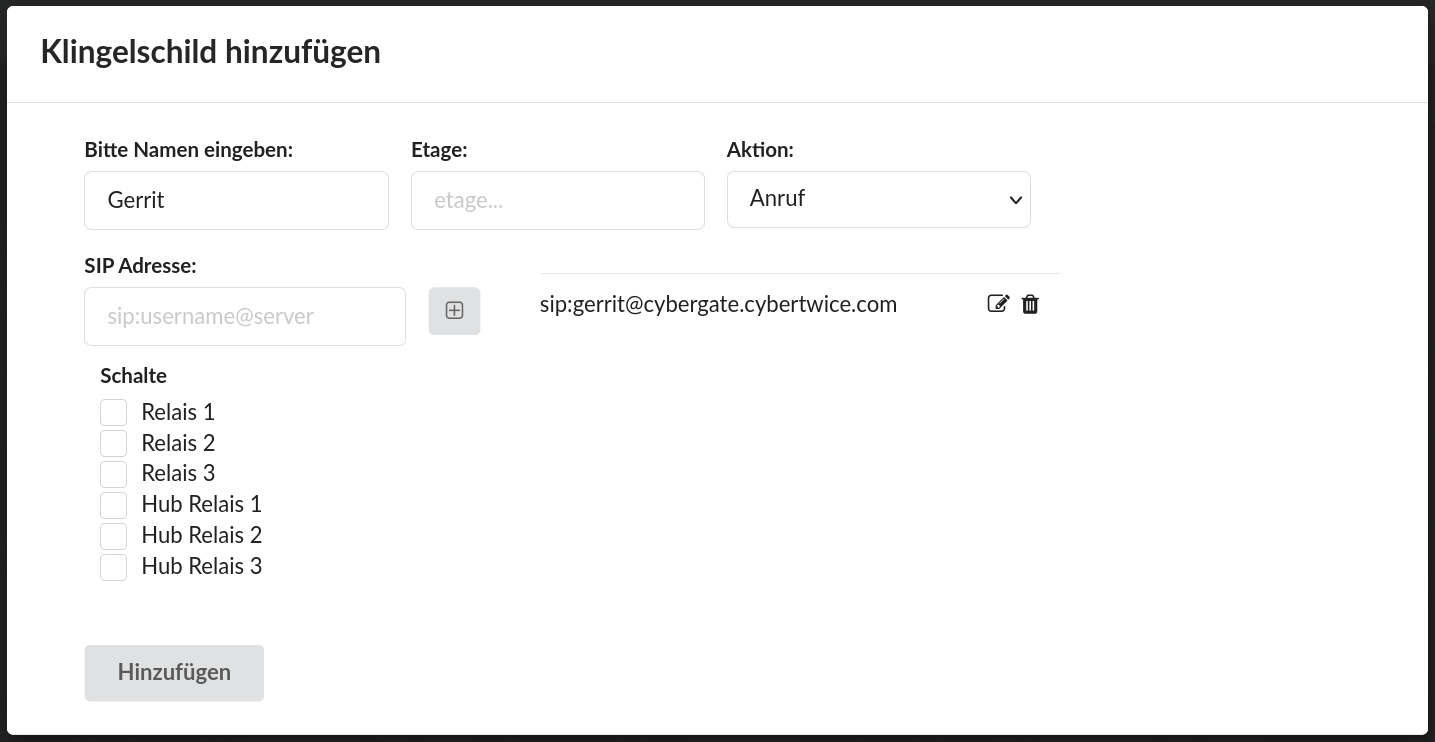
Under Doorbell Buttons, a doorbell button can now be created and set up with Teams users as call destinations. These are specified in the form [USERNAME]@cybergate.cybertwice.com.
Setting Up the Teams Client
To use the door-opening function, the CyberGate app must be installed in the respective Teams desktop application. This can be done directly within Teams. Afterwards, a button to open the door will be displayed during calls from ESENTA Sias.


