Setup guide for operating ESENTA Sias with Unify OpenScape
Setting Up a SIP User for ESENTA Sias in Unify:
Open the Unify web interface and log in as administrator.
Then under "Setup -> Devices/Subscribers -> IP Devices" click "Edit"
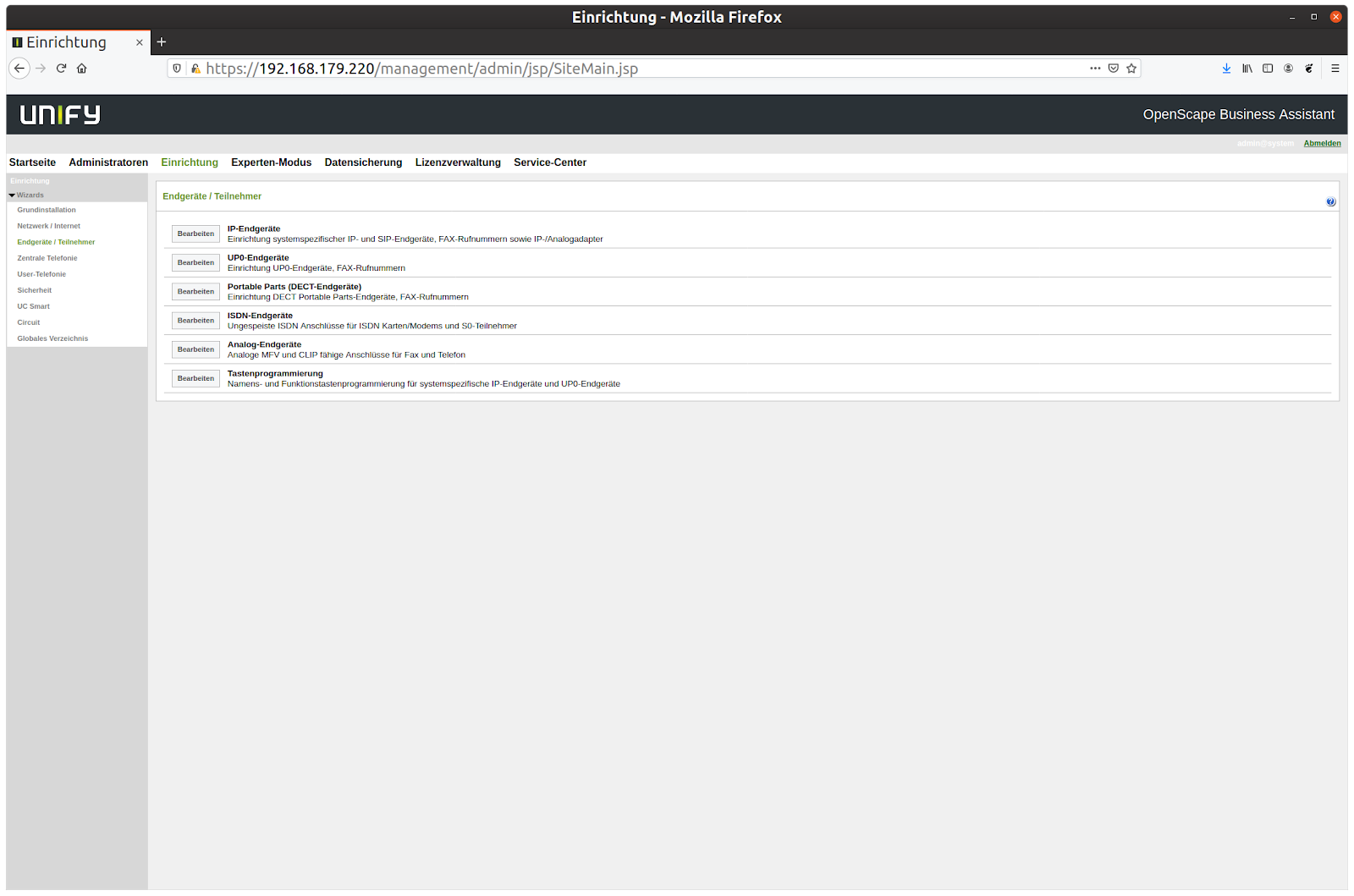
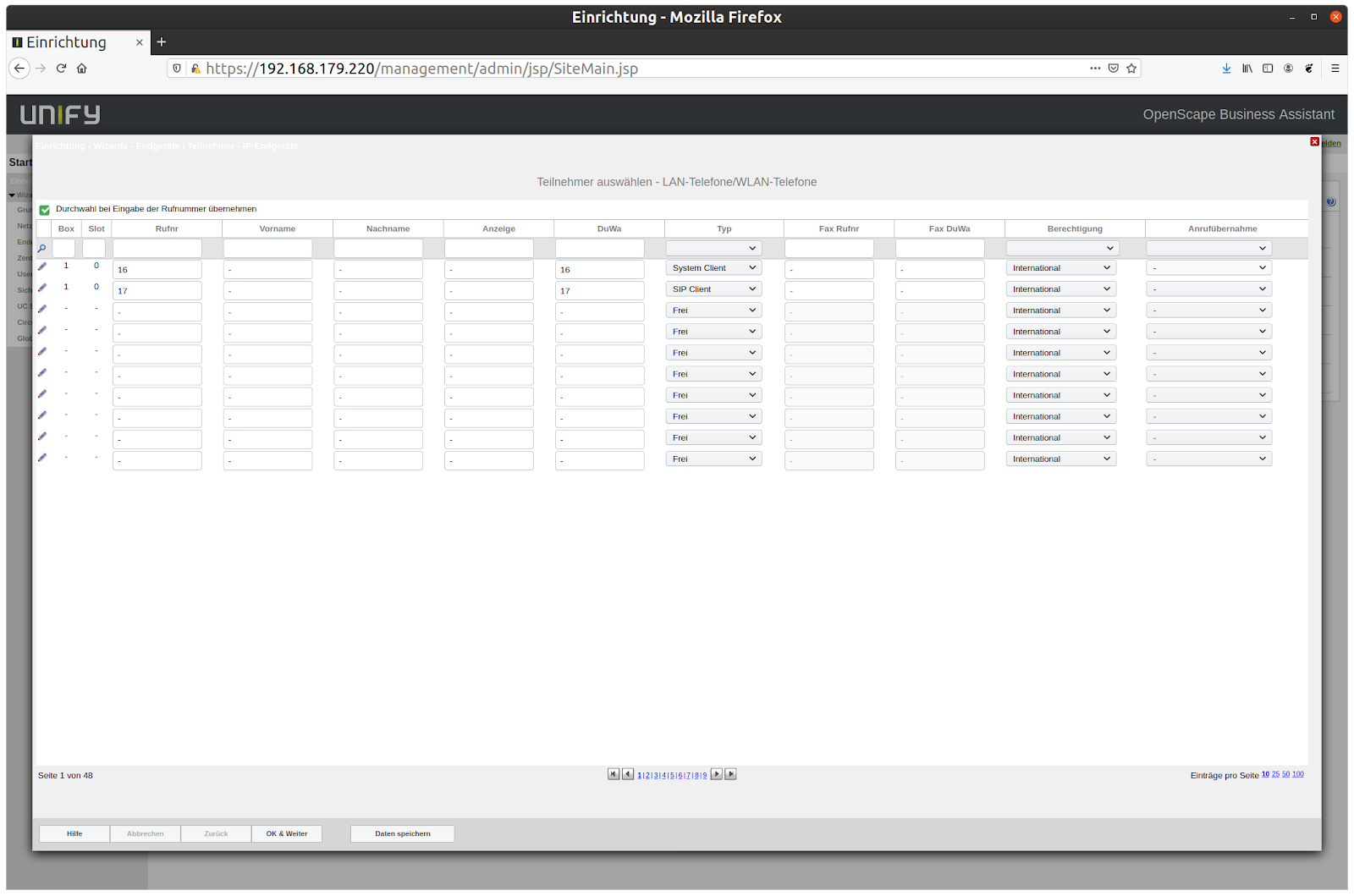
There, enter a call number and DuWa for SIAS, set the type to "SIP Client", restrict permissions if needed, and then click "Save Data".
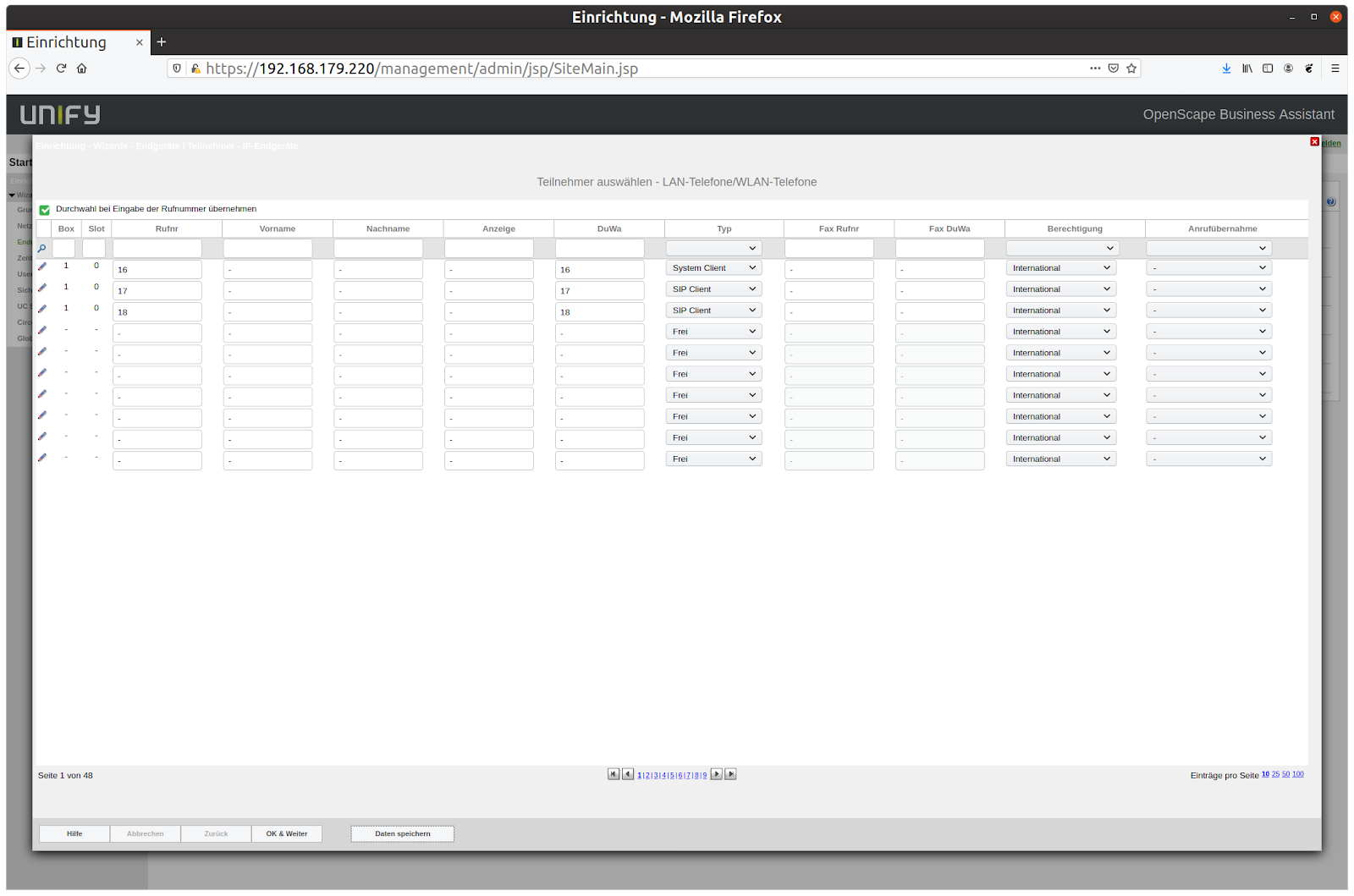
Now click the pencil icon on the far left of the row.
On the following page, assign a "Password" and "SIP User ID / Username" for SIAS:
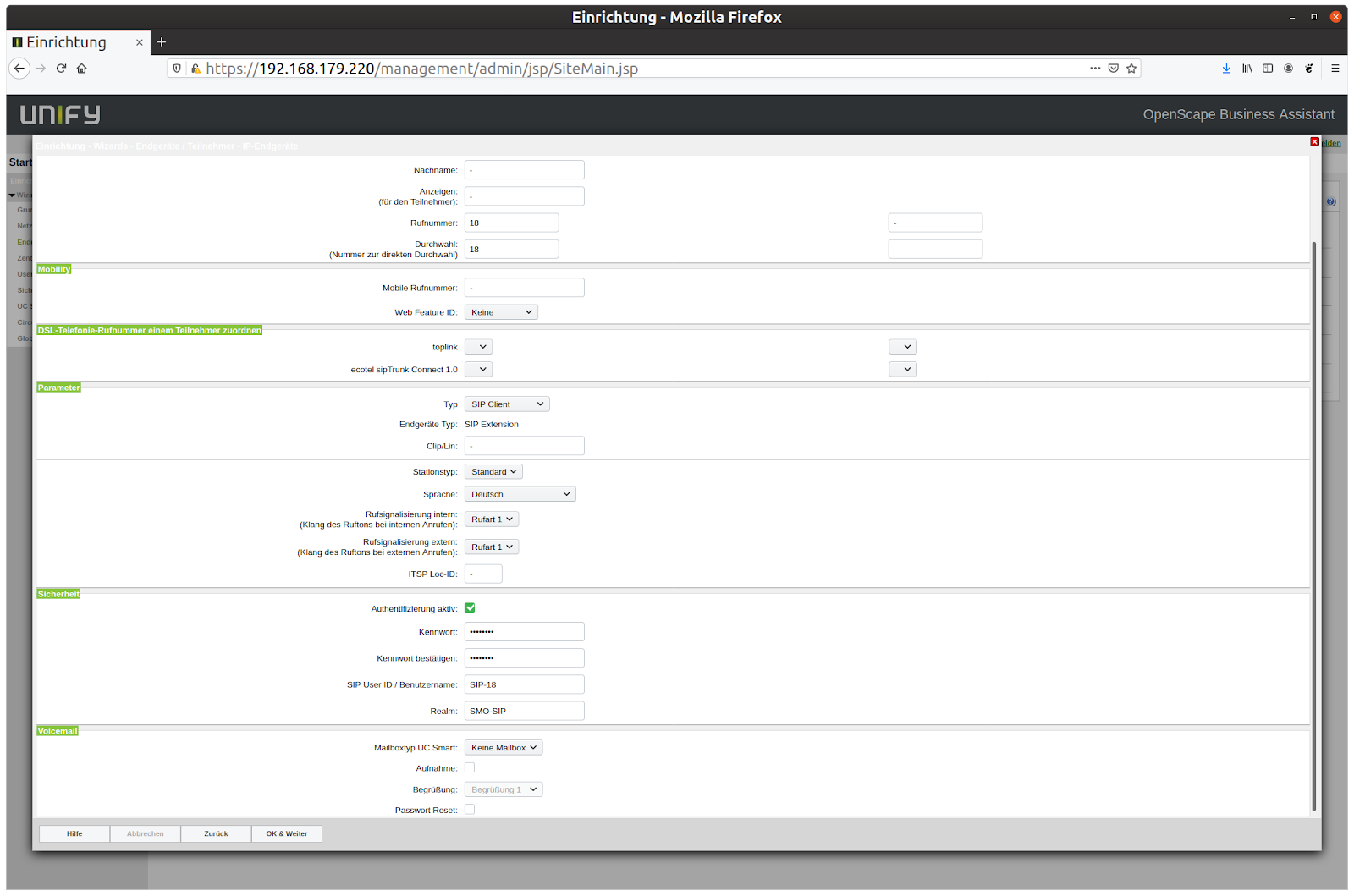
Then click "OK & Next".
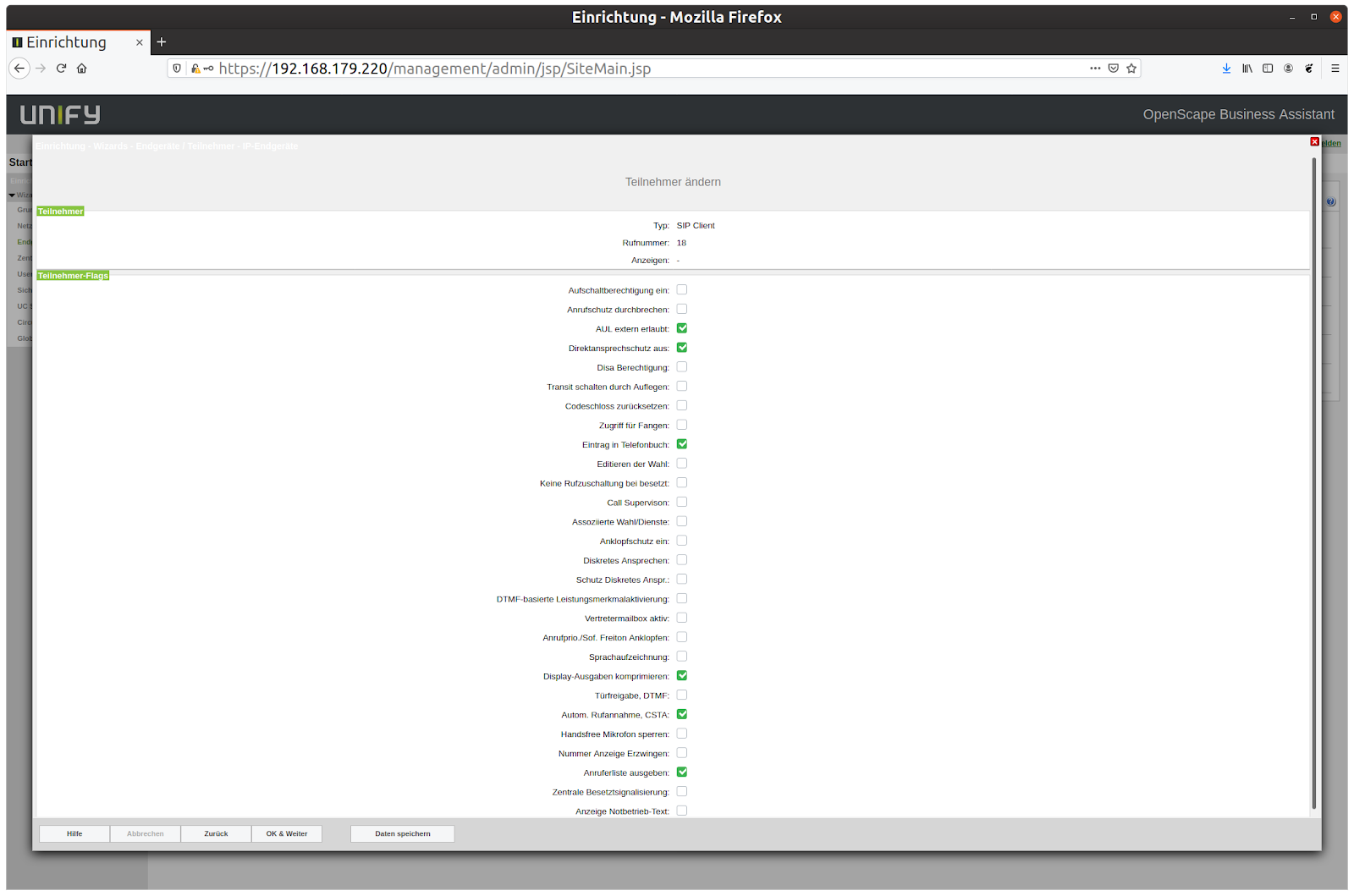
Then click "OK & Next" again.
Entering SIP Credentials in ESENTA SIAS
First open the ESENTA SIAS web interface and log in.
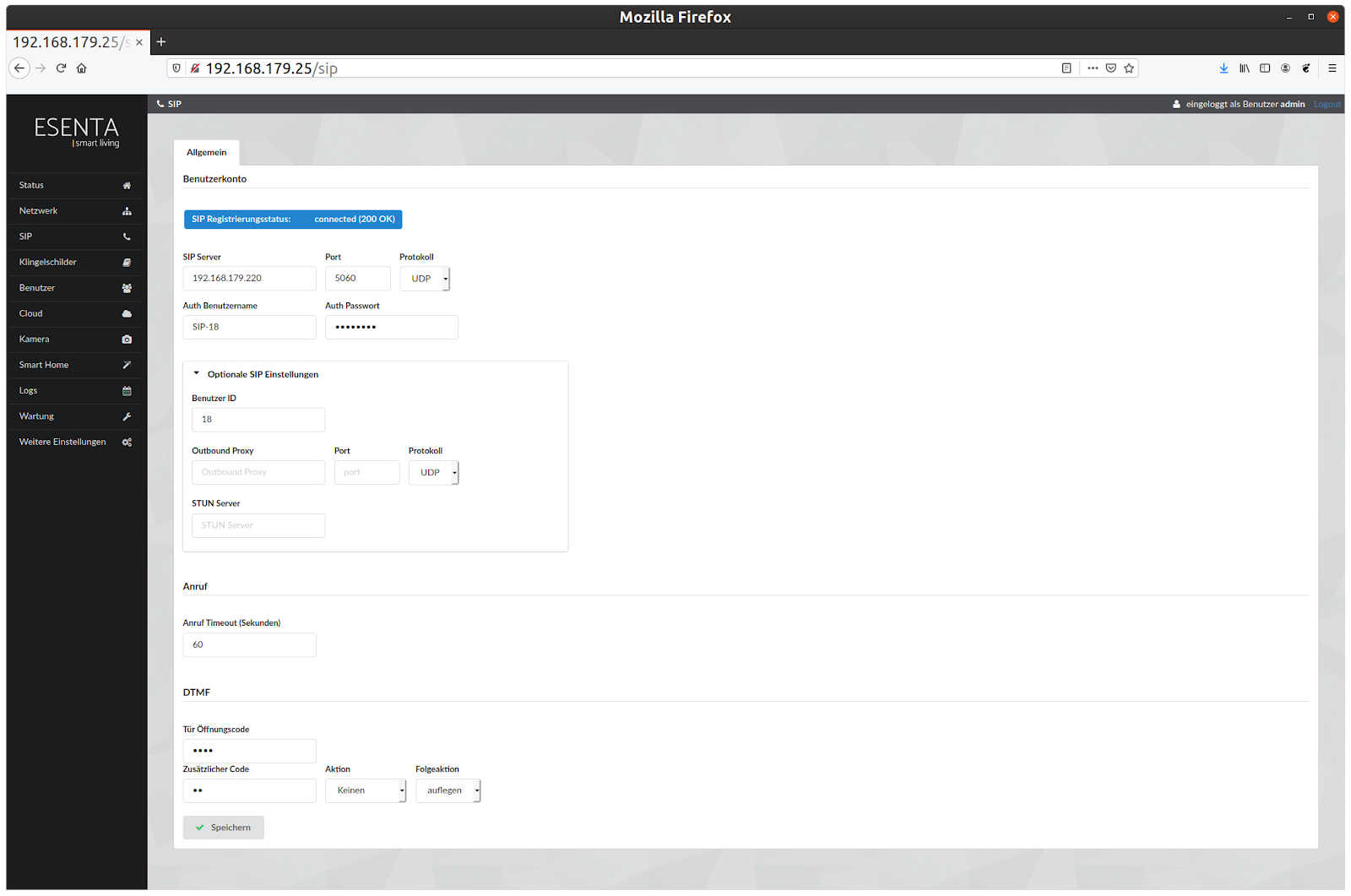
On the "SIP" page there, enter the IP address of Unify OpenScape as the SIP server.
As "Auth Username", enter the "SIP User ID/Username" from Unify, and enter the corresponding "Password" under "Auth Password".
As "User ID", enter the "call number" from Unify.
Setting Up a SIP IP Phone (for example Grandstream)
As an example of a device that should be callable by SIAS via Unify OpenScape, a Grandstream IP phone is shown below.
Just like for SIAS, a SIP account must also be created for this device in Unify OpenScape:
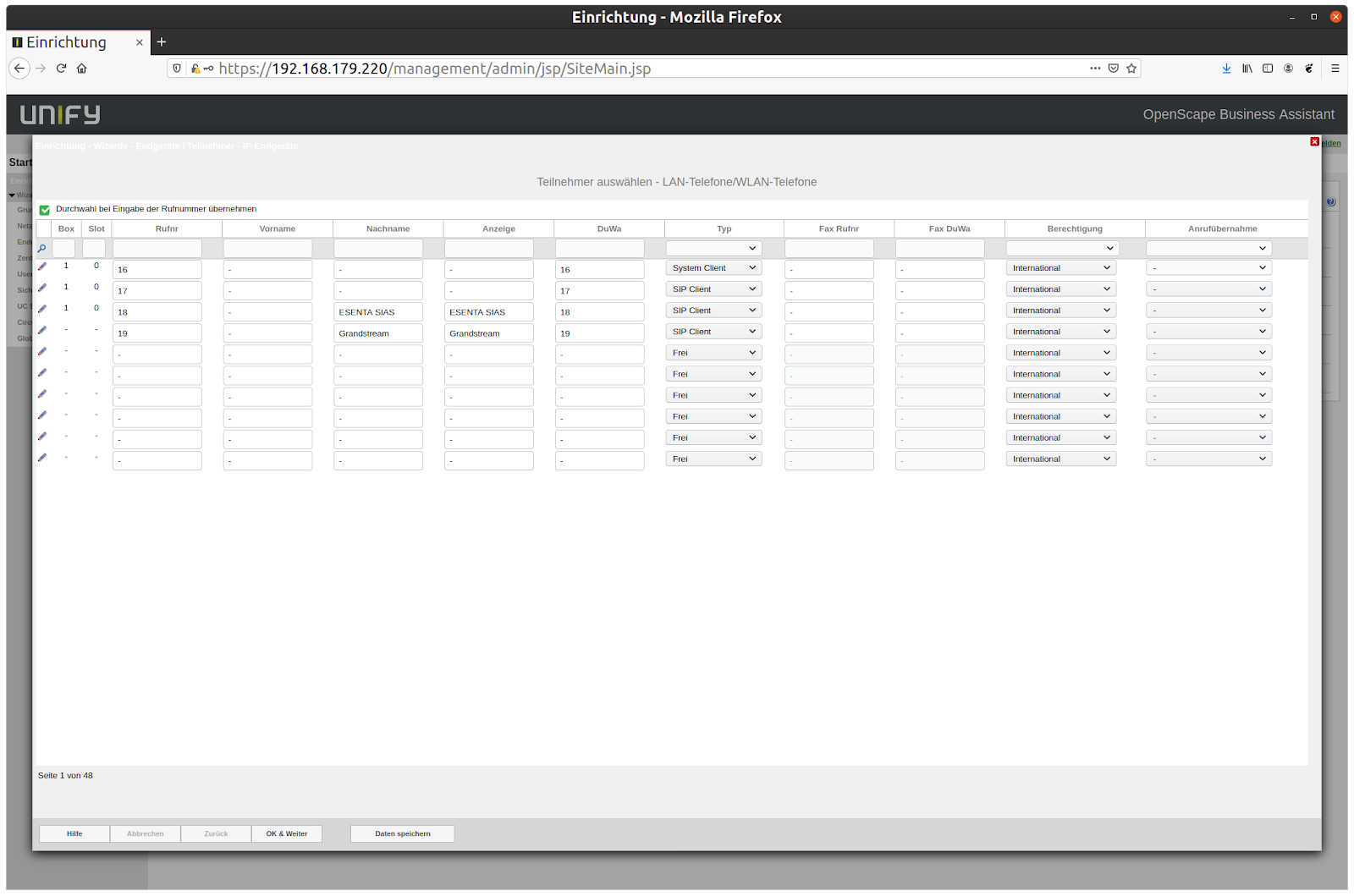
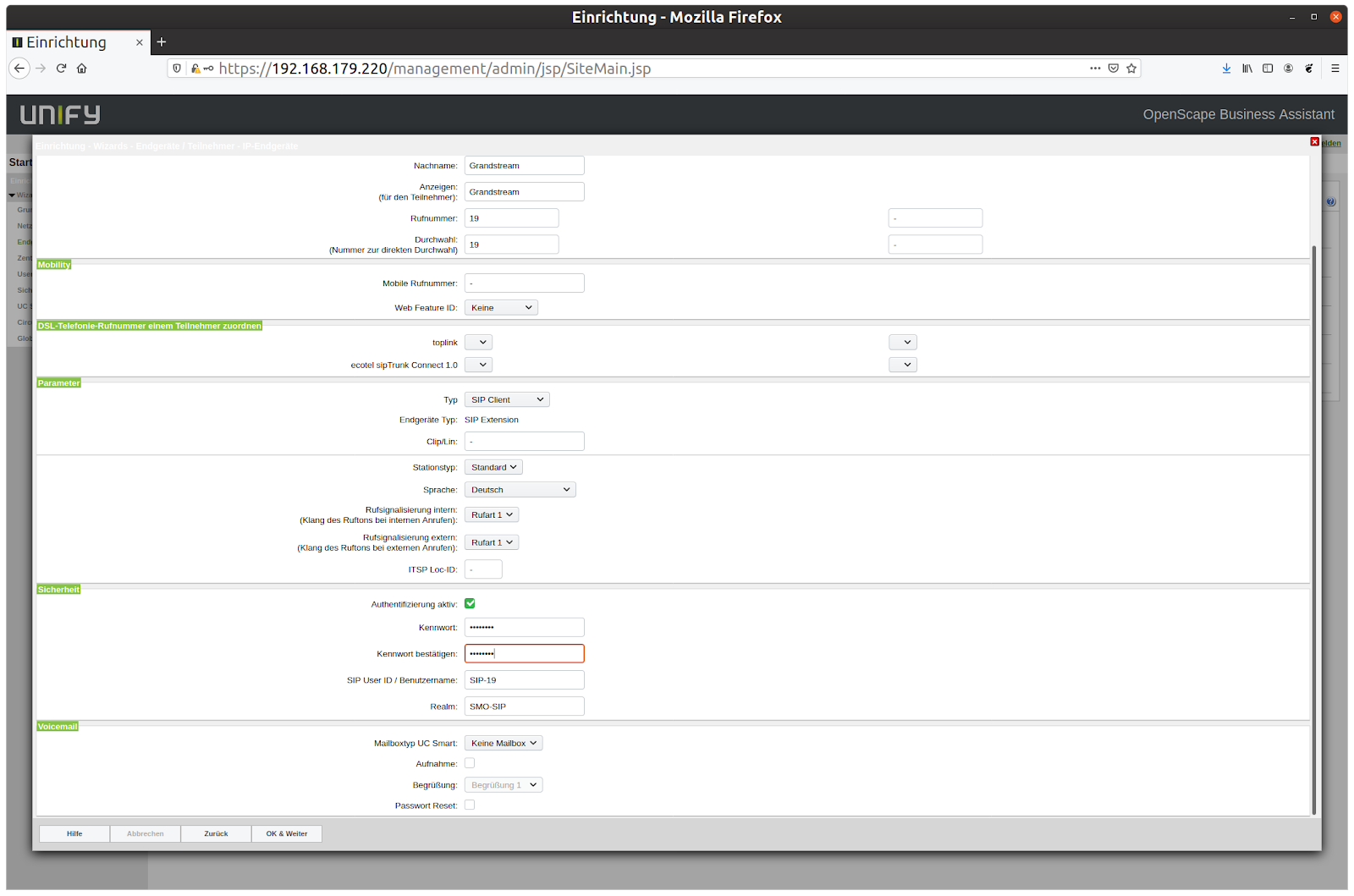
The credentials must then be entered in the Grandstream IP phone's web interface:
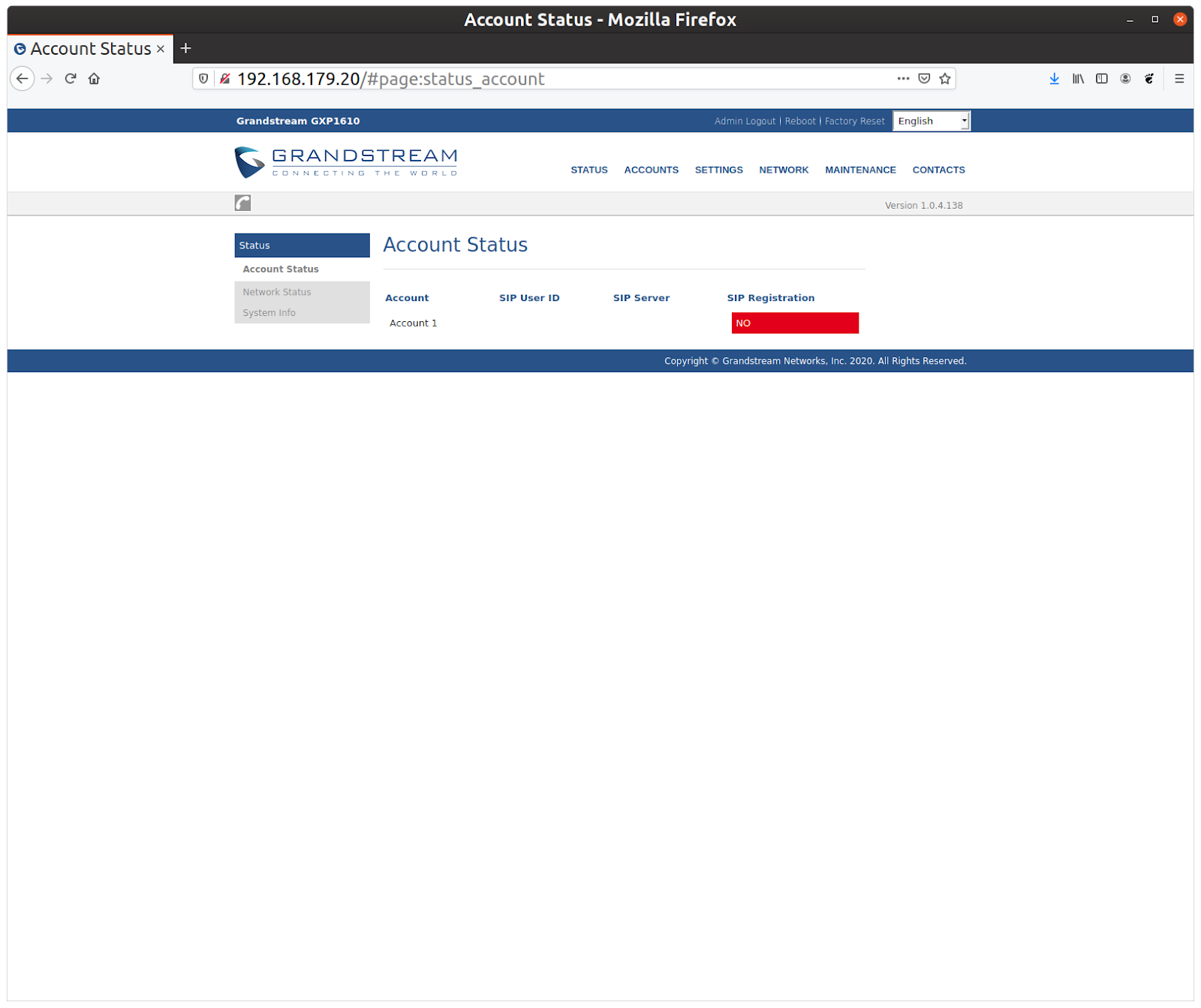
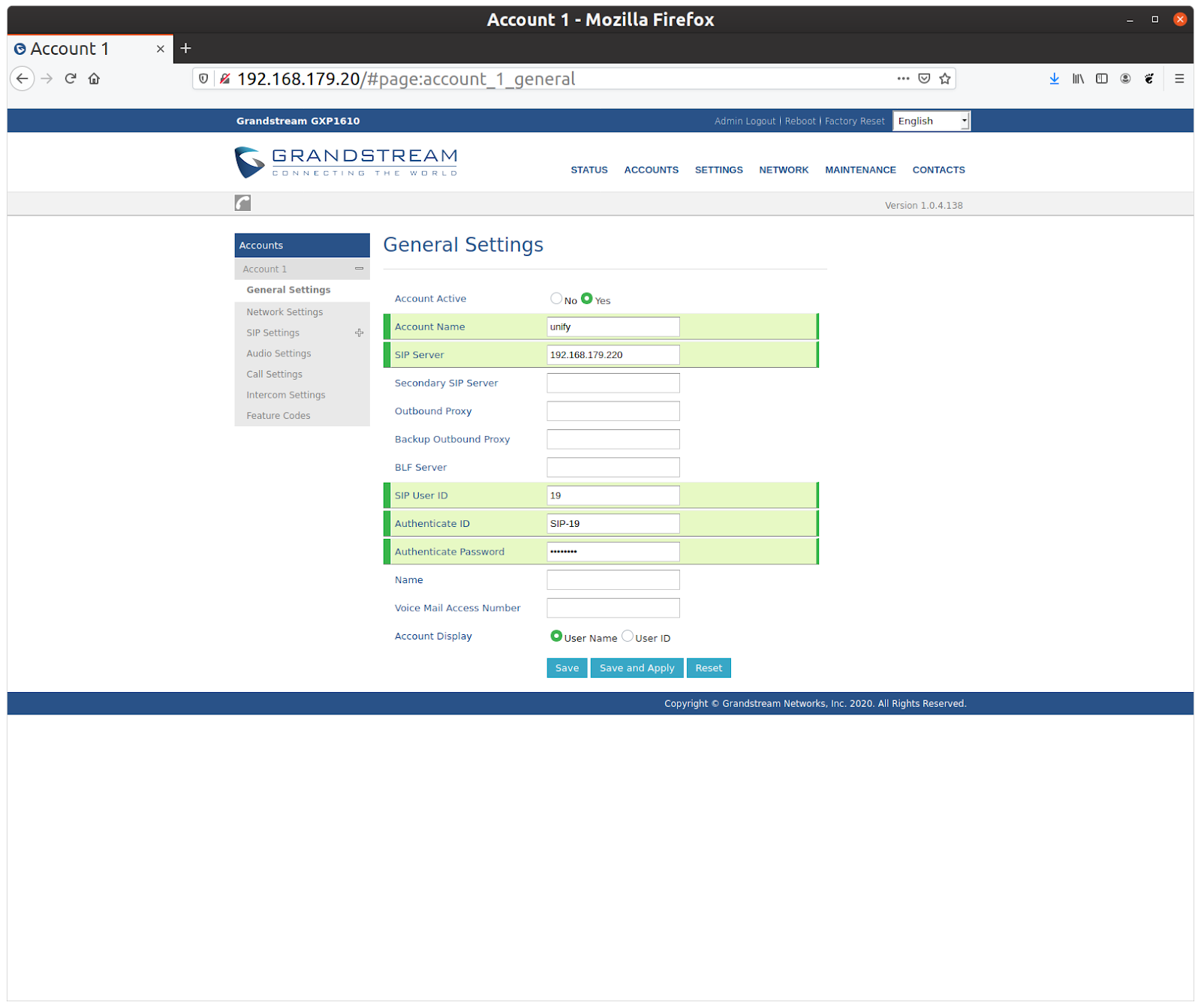
Under Accounts->Account 1, enter the following data:
Enter the Unify IP under "SIP Server".
Enter the call number under "SIP User ID".
Enter the "SIP User ID/Username" under "Authentication ID"
and enter the "Password" under "Authenticate Password".
Then click "Save and Apply"
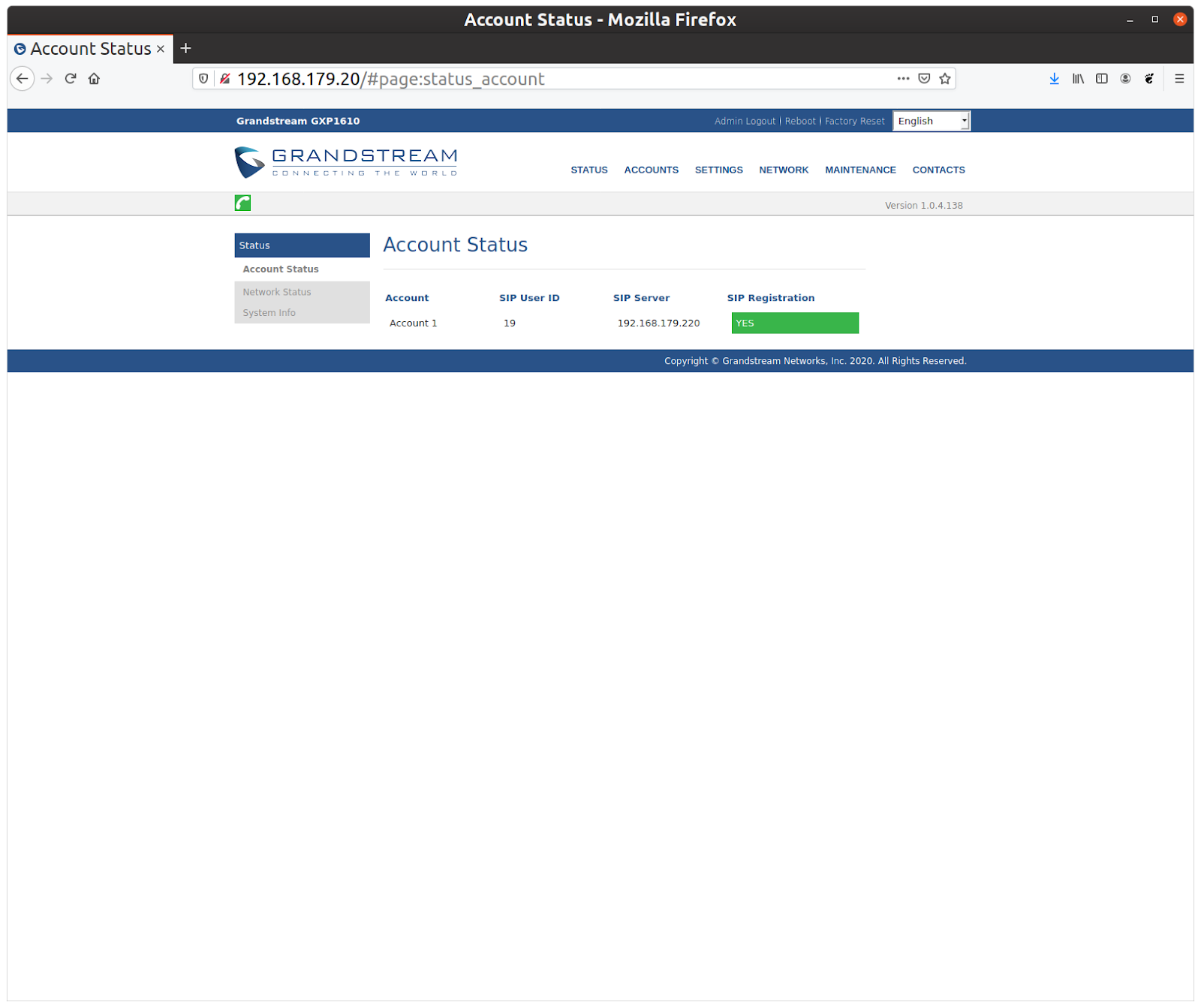
After that, the Registration Status on the Status page should be green:
Assigning the SIP Phone to a Doorbell Nameplate in the ESENTA Sias Web Interface
The IP phone can now be set up for a doorbell button on ESENTA SIAS.
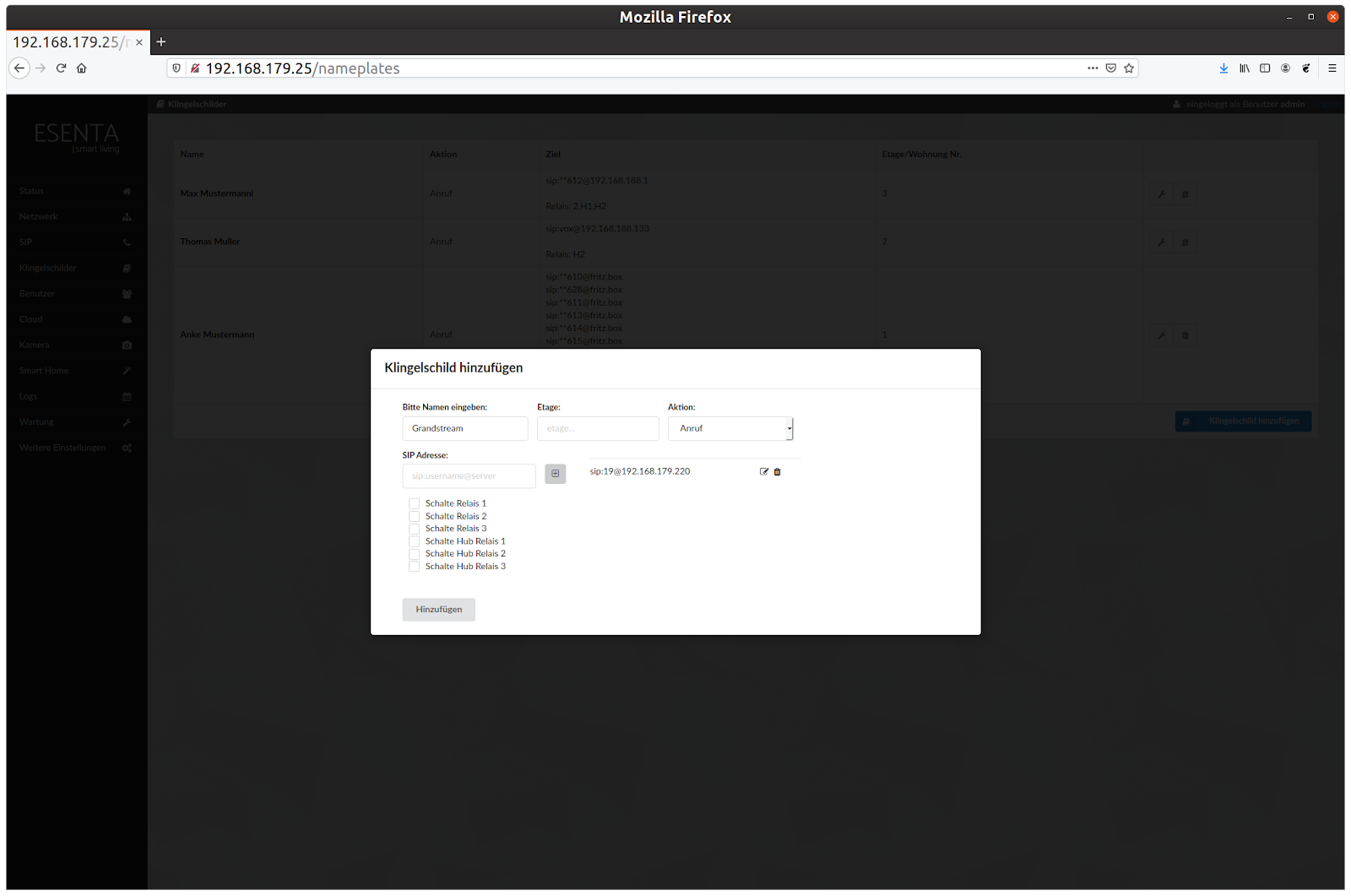
To do this, open the "Doorbell Nameplates" subpage in the SIAS web interface and click "Add Doorbell Nameplate".
Enter a name and enter "sip:CALLNUMBER@UNIFY_IP" as the SIP address, in this case "sip:19@192.168.179.220". Then click "Add":
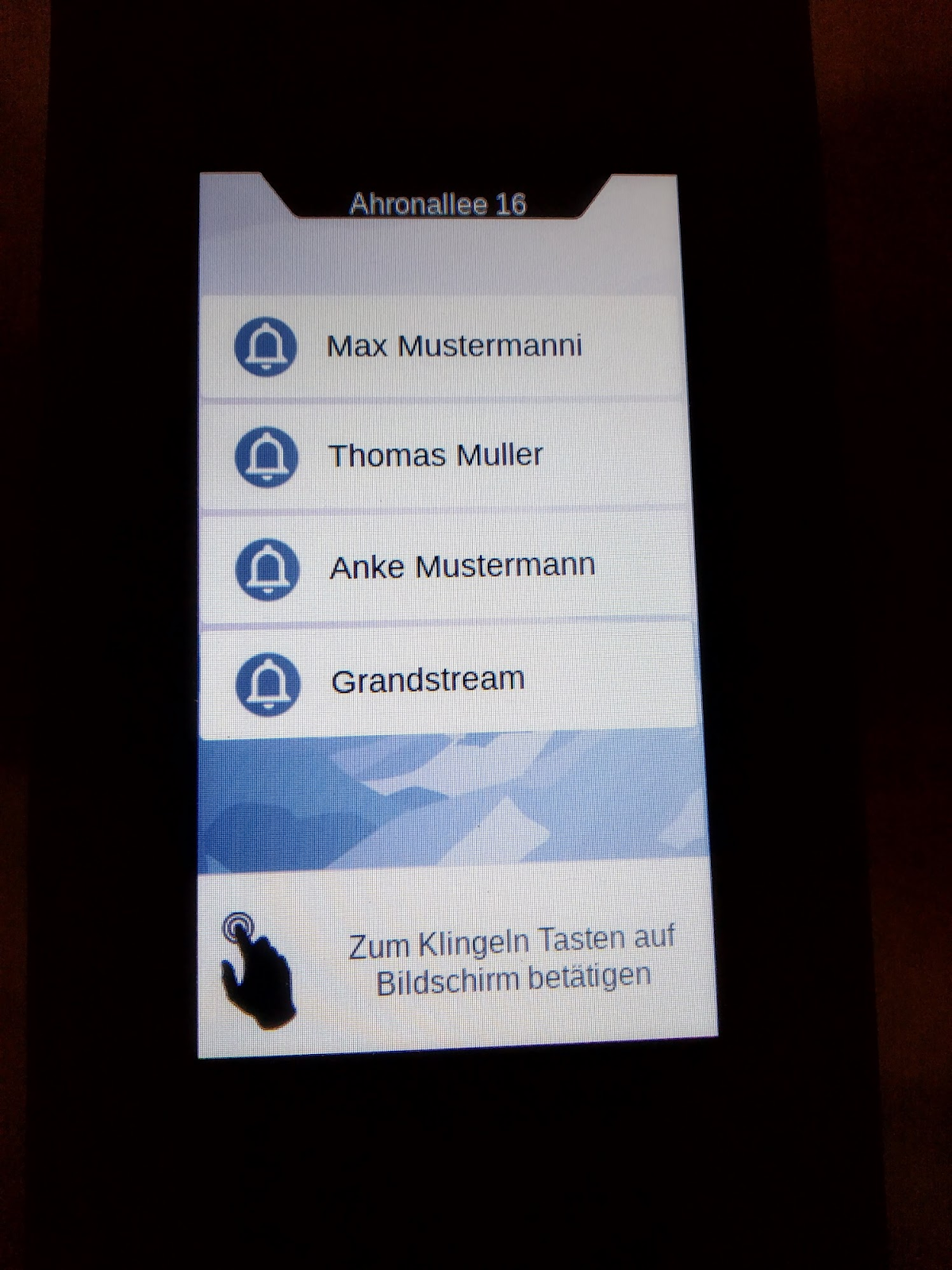
To test whether the settings are correct, press the doorbell nameplate on the ESENTA Sias display:
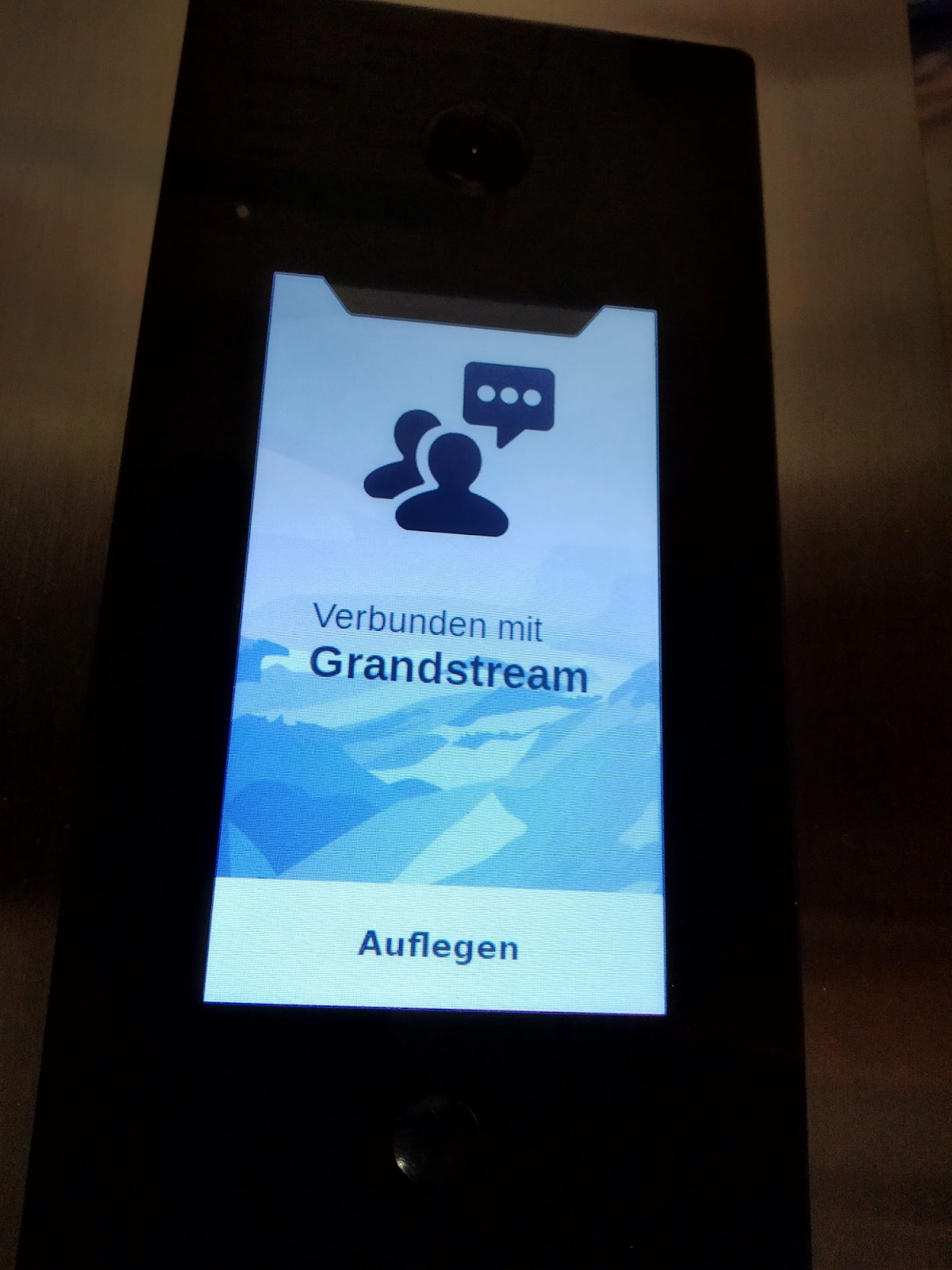
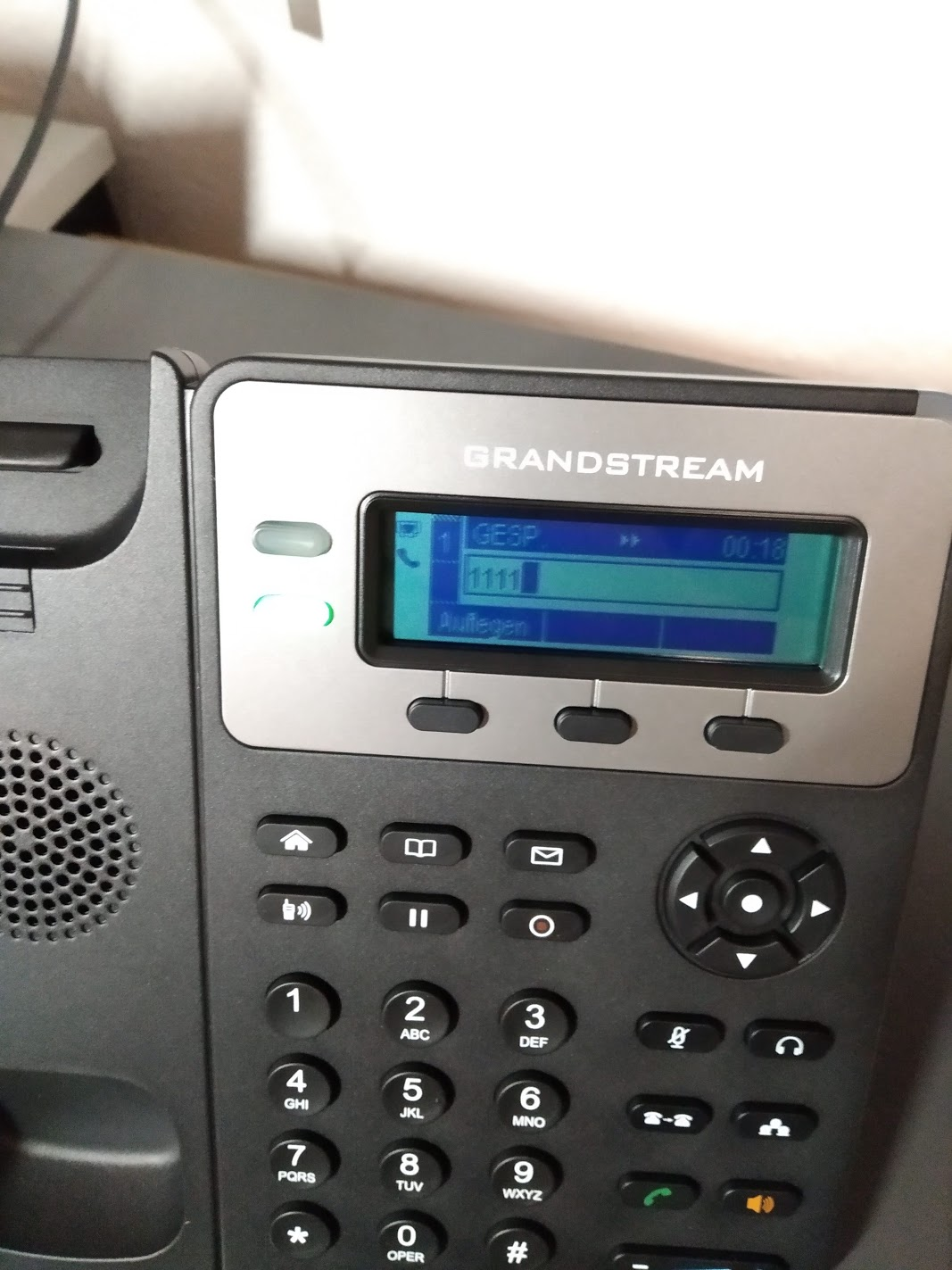
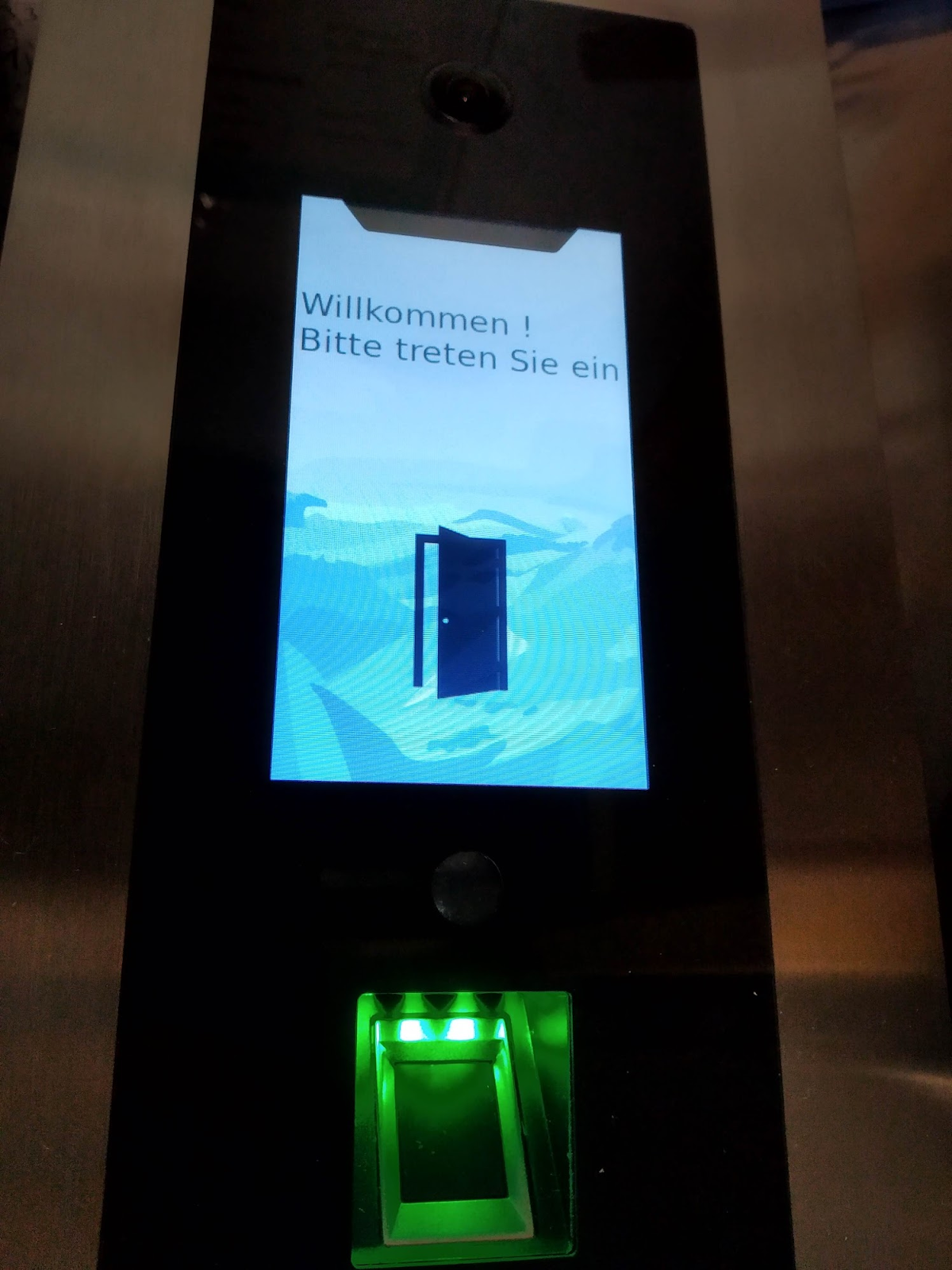
If a DTMF door opening code has been assigned in the SIAS web interface, the door can be opened using the IP phone's keypad:
Connecting an Analog Phone to Unify and Calling It via ESENTA SIAS
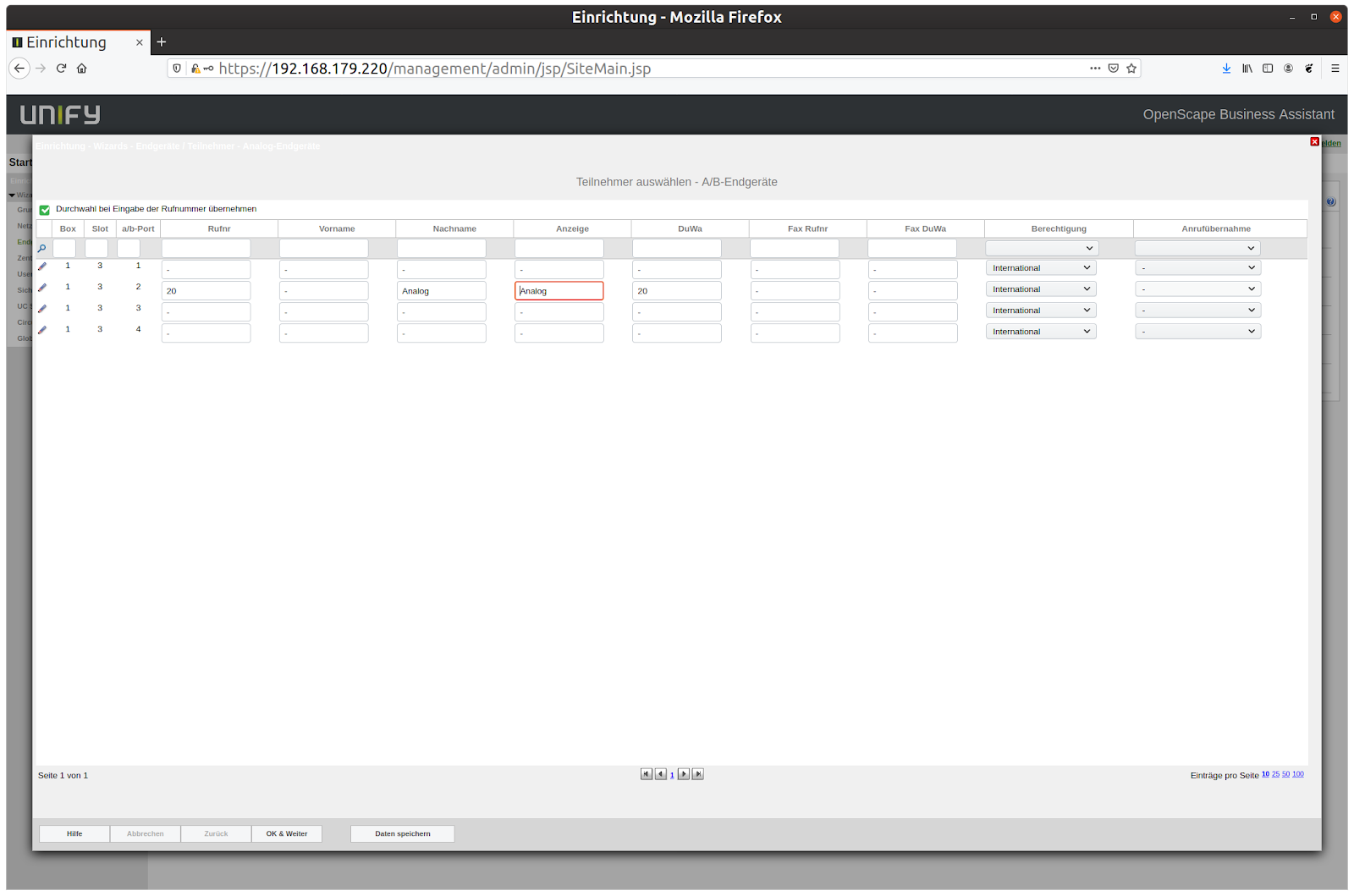
Open the Unify web interface -> Setup -> select Analog Devices
Enter a "call number" for the desired a/b port and click "Save Data".
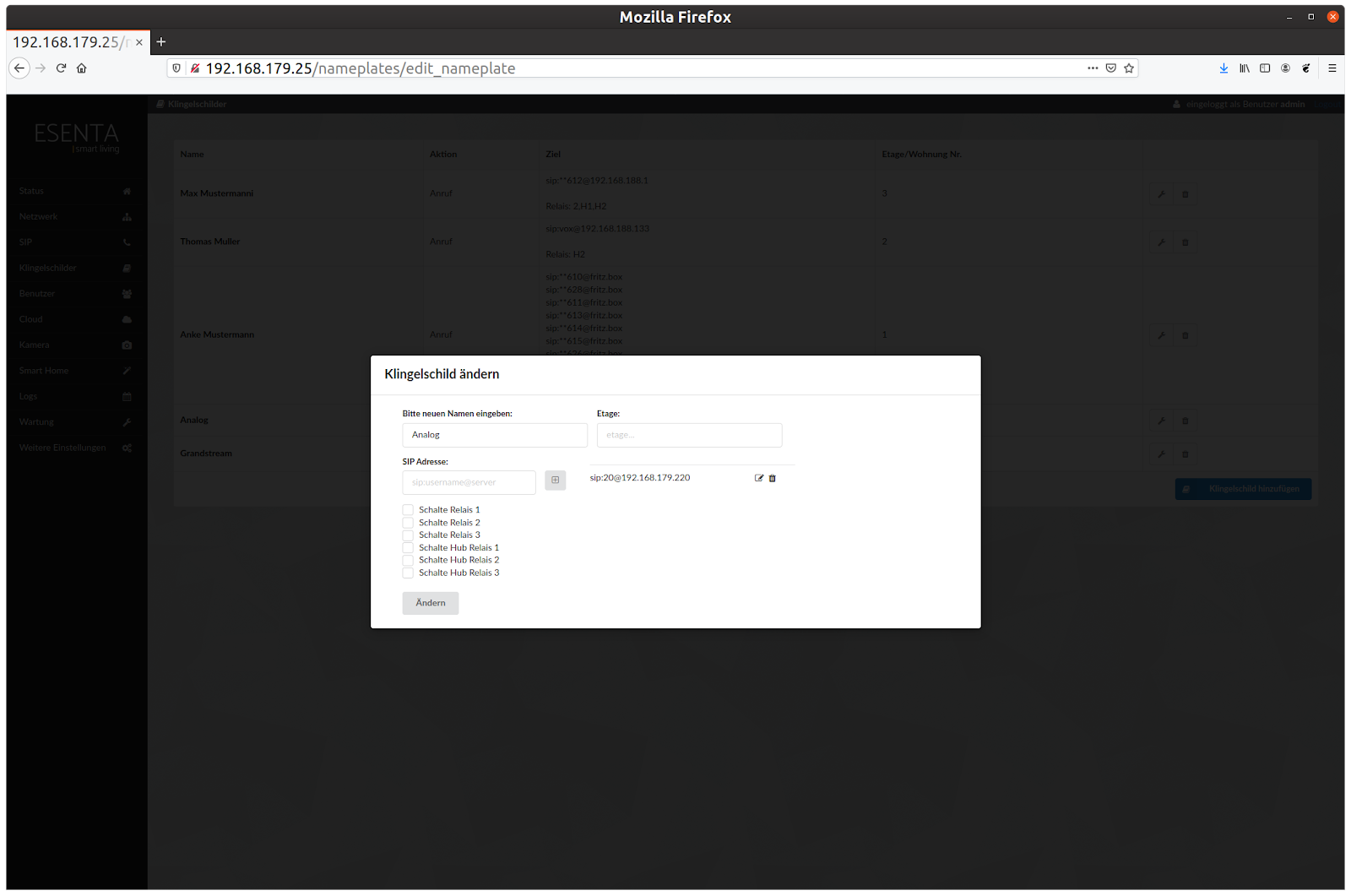
Then set up a doorbell button in ESENTA Sias:
Now test the call: